CHARACTER PRESET MANAGER
Your character. Your presets.
Save, load, and share your looks. Supports ACU preset files.
If you enjoy my mods, you can support my work through Ko-fi or PayPal.


DOWNLOAD • DISCORD • SOURCE CODE
Current version: 4.1.0 · Changelog
IMPORTANT
Remove the ACU mod, but keep your ACU presets.
About Character Preset Manager
Character Preset Manager is a successor to Appearance Change Unlocker (ACU). It saves and loads your character's appearance, so you can switch between presets without recreating each look.
It reads older Character Preset Manager files and compatible ACU presets. See the import section for compatibility details.
- Save and load vanilla, CC, and CCXL appearance choices.
- Open the character customization menu anywhere with a hotkey.
- Search by preset name, folder, or tag.
- Organize presets into folders, mark favorites, add notes, and rename or copy them.
- Share individual preset files.
- Recover deleted items from Trash.
Showcase
Install and update
Requirements
Install these four frameworks:
- Cyber Engine Tweaks 1.38.0 or newer
- RED4ext 1.31.0 or newer
- redscript 0.5.32 or newer
- Codeware 1.21.1 or newer
Use versions that support your installed game. After a game update, check that the frameworks and this mod are compatible before using the editor.
First installation
- Install the four required frameworks listed above.
- Download Character Preset Manager from Nexus Mods.
- For manual installation, extract the ZIP into your main Cyberpunk 2077 folder. With a mod manager, install the archive normally.
- Start the game and set up your CET overlay key if prompted.
- Open character creation or an apartment mirror to use the Preset Manager.
Update an existing installation
- Close the game.
- Back up the Character Presets and Data folders inside your current Character Preset Manager (CET) mod folder.
- Remove these three folders from your game directory, including the native DLL in the last folder:
text
   bin/x64/plugins/cyber_engine_tweaks/mods/Character Preset Manager (CET)
   r6/scripts/CharacterPresetManager
   red4ext/plugins/CharacterPresetManager
Remove the old folders before installing the update. Overwriting them can leave old scripts active.
- Install the new version using the installation steps above, and update the required frameworks if needed.
- Restore your backed-up Character Presets and Data folders to the mod folder.
- Start the game.
Compatibility and incompatibilities
- EKT Custom Character Creator — Compatible
- CCXL customization mods — Supported when the saved choices can be identified in the installed catalog.
- Character Customization Anywhere — Incompatible
- Appearance Change Unlocker (ACU) — Incompatible
Menus
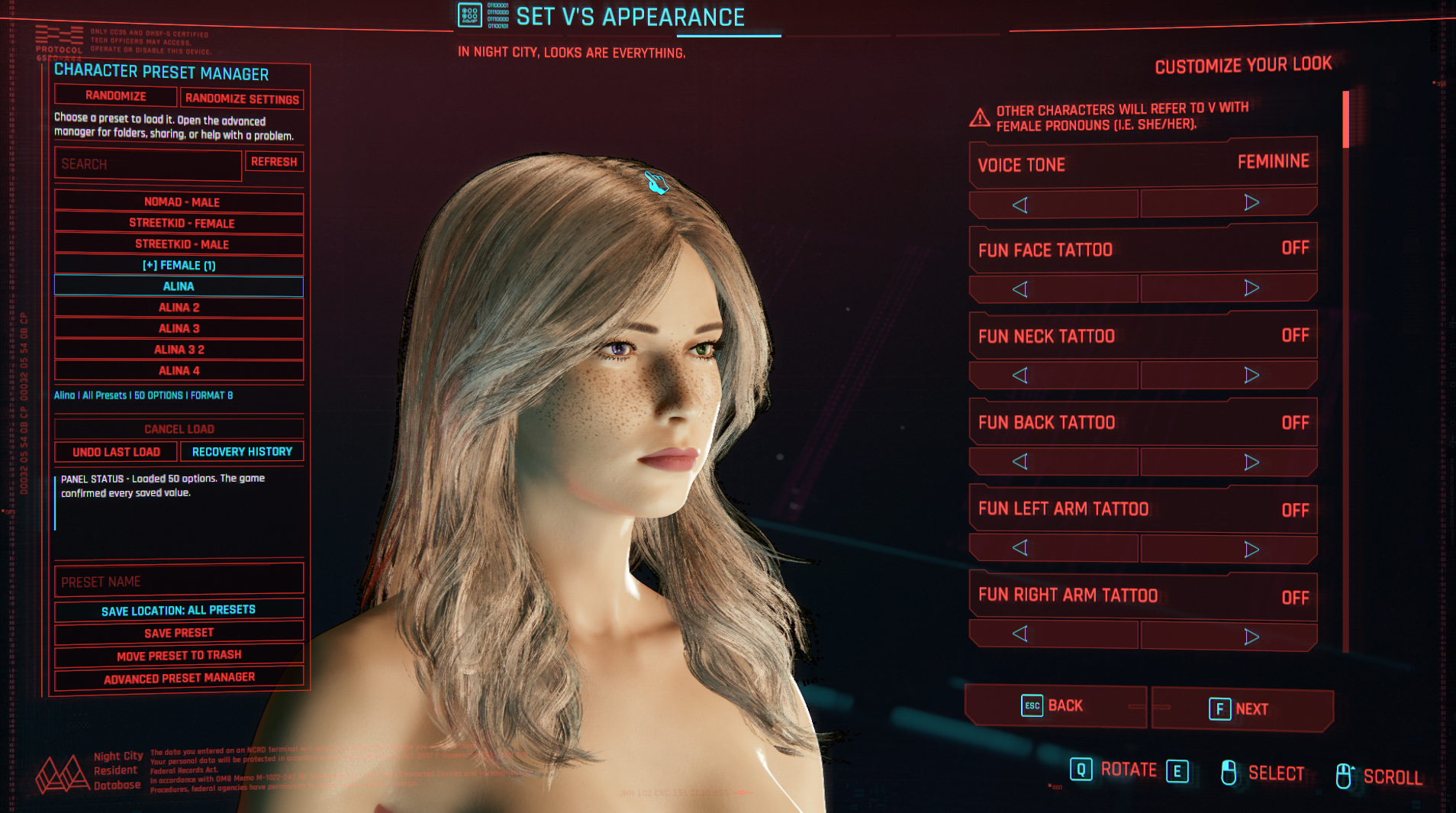
Preset Manager
Appears in the character customization screen. From here, you can:
- Load a preset with one click.
- Save your appearance as a new preset or overwrite an existing one.
- Browse folders and favorites.
- Search by preset name, folder, or tag.
- Refresh the list after adding or changing preset files.
- Randomize your appearance and choose which categories can change.
- Undo the last preset load.
- Move a preset to Trash.
- Open the Advanced Preset Manager.
- Check Panel Status for progress, warnings, and confirmations.
Advanced Preset Manager
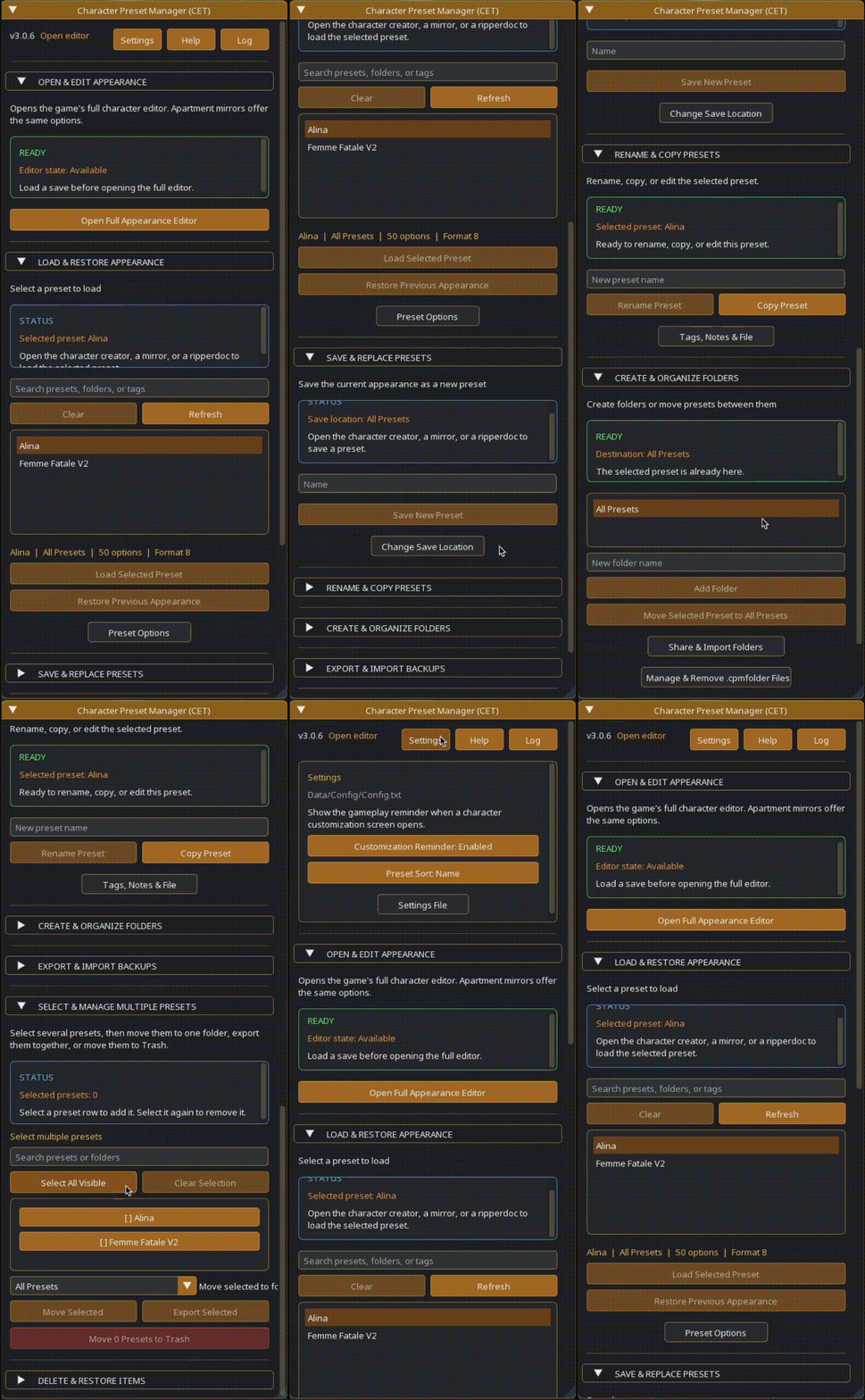
Open it with your CET overlay key, or select Advanced Preset Manager in the Preset Manager menu. From here, you can:
- Save, load, rename, and copy presets.
- Search presets and organize them with folders, favorites, notes, and tags.
- Move or delete several presets at once.
- Import ACU presets.
- Share individual preset files.
- Undo the last preset load.
- Move items to Trash, restore them, or delete them permanently.
- Refresh the library and editor options together, and review load warnings.
- Open the full character customization menu.
- Randomize your appearance and choose which categories can change.
- Change preset sorting in Settings and view the Activity Log.
Select Character Creator at the top of CET to open the customization menu. Use Advanced Preset Actions for renaming, copies, favorites, notes, tags, and the file path.
Refresh updates your library and the current editor choices. With the editor closed, it refreshes only the library; during a load, it waits until loading finishes.
Apartment mirrors
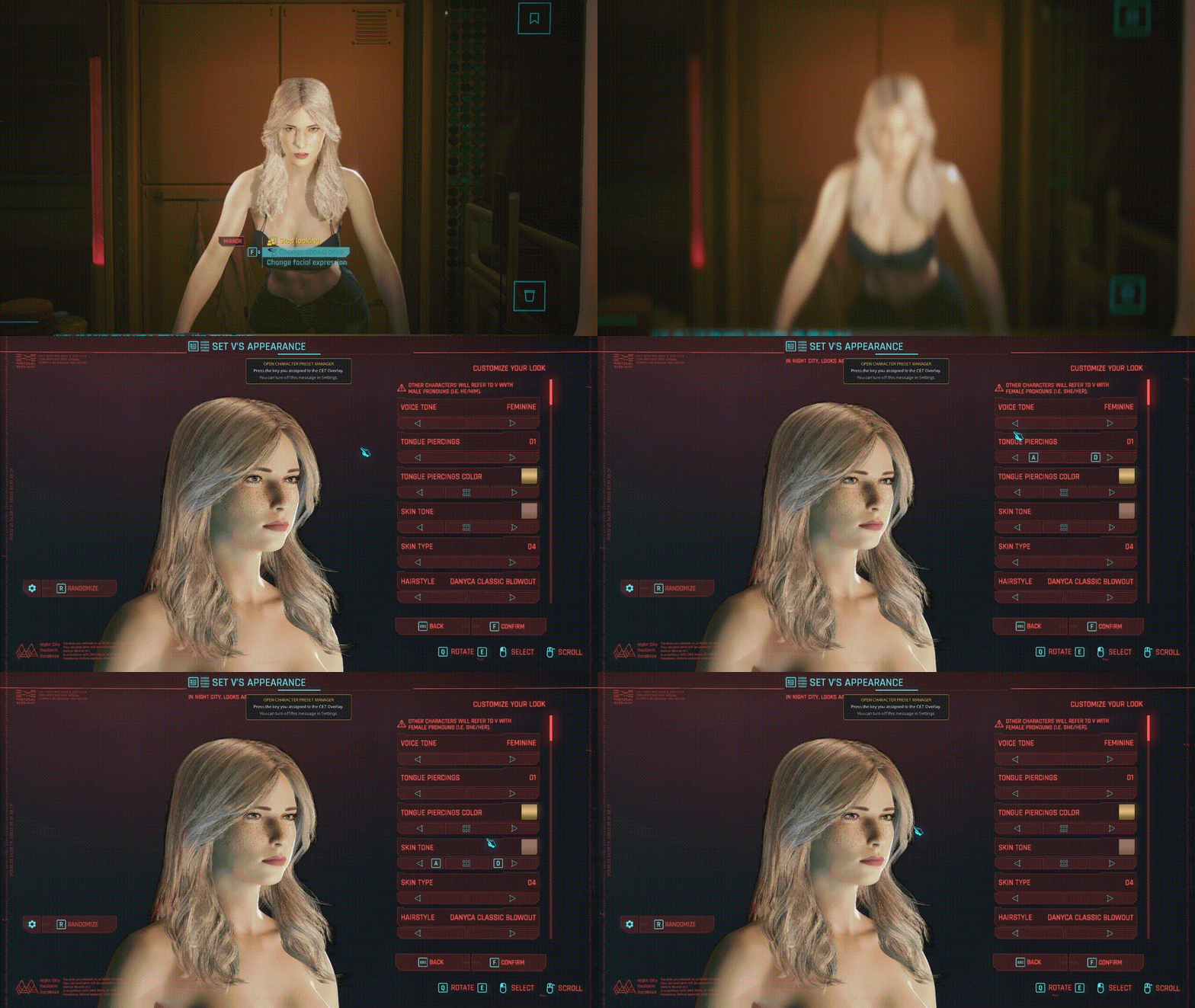
Apartment mirrors give you access to the full character customization menu.
Gender cannot be changed mid-game. Choose it when creating a new character.
Manage presets: imports, folders, and sharing
Import ACU presets
Remove the ACU mod and keep its preset files.
- Put the presets in this folder inside your game directory. Create it if needed:
text
   bin/x64/plugins/cyber_engine_tweaks/mods/AppearanceChangeUnlocker/character-presets
- Start the game with Character Preset Manager installed.
- Open the Advanced Preset Manager and look under ACU Presets. Select Refresh if a preset is missing.
Importing is automatic. Original files stay unchanged, and imported copies keep their subfolders.
Older ACU text and JSON presets are supported, including ACU 4.1.1 version-2 files with a // ACU-PRESET header. Version-3 files with that header are not supported.
Version-2 choices need names that can be uniquely matched to your installed options. Choices that cannot be matched stay unchanged.
Older ACU presets may store only choice numbers. Changing character mods can change what those numbers select, so check the appearance and warnings before confirming. Loading does not change your character's body or voice.
Imported ACU files are read-only. After checking or correcting the appearance, save it under a new name to use CPM notes, tags, and favorites.
Save format 9 and upgrade older CPM presets
New presets use readable format 9 files. Overwriting an existing preset still asks for confirmation.
Older CPM presets upgrade automatically when you open an editor with the matching body type. Male presets need a male editor, and female presets need a female editor.
Each original is backed up before replacement:
Data/Recovery/Preset Upgrades/<batch>/<original preset path>`.preset`
Names, folders, notes, tags, favorites, and creation dates are kept. An upgrade note is added, and backups are never deleted automatically.
For presets with no clear body type, open Advanced Preset Manager → Presets needing a body type. Choose the body the preset was saved for, regardless of its name or voice.
Older presets may store choice numbers. Changed character mods can make those numbers select different options, so check the appearance before confirming.
Missing choices stay unresolved. If no choices can be upgraded, or the backup fails, the original stays unchanged; check the Activity Log for details.
Body filtering
Open Settings → Preset Library → Visibility to choose what appears.
- Filter by body shows known matches for your character.
- Show all presets also shows unknown and opposite-body presets. Known mismatches still cannot be loaded.
The selected preset shows Male, Female, or Unknown. This refers to body type, not voice, and does not change your character.
Presets with missing body information remain under Presets needing a body type, even when hidden from the main list. Select Refresh after adding files or to check their body information again.
Where files are stored
Your presets are stored here, inside the game folder:
bin/x64/plugins/cyber_engine_tweaks/mods/Character Preset Manager (CET)/Character Presets
To share a preset, send its .preset file. To install one, place it in this folder or a subfolder, then select Refresh in the Advanced Preset Manager.
Ordinary format 9 and ACU reads and loads leave source files unchanged. Identified older CPM files are replaced only through automatic migration after a verified backup.
Preset folders
Open Advanced Preset Manager → Folders to create virtual folders and move presets between them. Folders created in the Advanced Preset Manager organize your library without creating Windows folders. You can also make subfolders.
Copying a folder includes its presets and subfolders. Remove Folder, Keep Presets moves its contents to the parent folder.
Folders added outside the game
If you put a folder inside Character Presets, it appears in the menu as Imported. Renaming or moving it in the menu does not rename or move the folder on your computer.
Choose Remove Folder, Keep Presets to move its presets into the main preset folder. The old folder is removed only when empty, so any other files stay safe.
Use regular folders, with no more than 12 levels of subfolders. Folder links that point somewhere else on your computer are not supported.
Share preset files
Send individual .preset files and place received presets in Character Presets, then select Refresh. Folder sharing and .cpmfolder import/export are no longer available. Existing files are left alone; a sharing file already in Trash can still be restored or permanently deleted.
Recovery and Trash
Original presets from automatic upgrades
Automatic-upgrade backups are separate from appearance history and Trash. They keep the original file bytes and subfolders under Data/Recovery/Preset Upgrades; CPM does not delete these backups automatically.
To restore one, close the game and copy the backed-up .preset over its matching path in Character Presets. Keep the backup copy afterward, since the restored old CPM file becomes eligible for automatic upgrade on the next run.
Undo Last Load
Use Undo Last Load in either menu to restore your appearance before the last preset load.
CPM keeps one saved appearance here:
Data/Recovery/LastAppearance.preset
A new, different appearance replaces that recovery file.
Older files in Data/Recovery/Appearance History stay untouched. If the new recovery file is missing, CPM can use the newest old entry.
Trash
Presets and folders moved to Trash can be restored through Permanently Delete or Restore in the Advanced Preset Manager. If a name is already taken, the restored item gets “Copy” added to its name.
Empty Trash Permanently deletes the items in Trash. This cannot be undone.
Common issues and bug reports
Redscript compilation failed
The error may name Character Preset Manager even when another mod is causing the problem. Check the log before deciding which mod to remove.
- Open
r6/logs/redscript_rCURRENT.loginside your game folder and look for errors. - Update or reinstall the four required frameworks listed under Requirements.
- Check for outdated or duplicate mods, including Virtual Atelier.
- Remove cybercmd if you have it installed.
- Close the game and delete its
r6/cachefolder, then verify your game files through Steam, GOG, or Epic. - If compilation still fails, disable your redscript mods in small groups and test again to narrow down the cause.
You can also test with only the required frameworks installed, then enable your mods a few at a time. If you need help, share the redscript log and error message on Discord.
Endless loading after changing your appearance
If the game gets stuck loading after you confirm your changes, your clothing or wardrobe outfit may be causing it.
Remove your clothing and select No Outfit in the wardrobe before opening the customization menu. You can put everything back on after you finish.
Menu buttons don't respond or presets don't appear
Make sure all four required frameworks are installed and up to date, then fully restart the game.
Startup scans the library, and the first status message also prompts Refresh. Refresh an empty list and check Preset Visibility; body filtering hides Unknown and opposite-body presets.
Downloaded presets don't appear
Check Where files are stored for preset installation steps. For ACU presets, follow Import ACU presets, then select Refresh in the Advanced Preset Manager.
Deleted presets appear again
The original ACU preset may still be in your ACU presets folder. Automatic importing can bring it back after you delete the copy in Character Preset Manager.
Move the original out of the ACU presets folder, then delete the imported copy.
An automatic upgrade is still pending
Open an editor with the body type the preset was saved for. If it is unknown, choose it under Advanced Preset Manager → Presets needing a body type.
Install the full update, including the RED4ext DLL. Check the Activity Log for the reason the upgrade stopped, correct the problem, then select Refresh.
The original stays unchanged if its backup fails or none of its choices can be upgraded. When only some choices work, check the appearance before confirming; unresolved choices stay unchanged.
Leftover hair, cyberware, or unconfirmed choices
Some preset loads can leave old hair or cyberware visible. The cause is still unclear, and reopening the editor may not fix it.
Check your character before confirming. A choice can be confirmed in the log even if an old part is still visible.
Missing choices stay unchanged, including eye or eyelash colors your installed mods do not provide. Include a screenshot and preset name when reporting the problem.
Back and closing the editor remain available during loading.
Report a bug
Join Discord and explain what happened and how to repeat it. Include the preset name, a screenshot if useful, and your latest Activity.log.
Select Log at the top of the Advanced Preset Manager to read or copy it. The file is also inside your game folder:
bin/x64/plugins/cyber_engine_tweaks/mods/Character Preset Manager (CET)/Data/Logs/Activity.log
For appearance problems, enable Settings → Diagnostics → Detailed appearance tracing, repeat the problem, then turn it off.
For missing or incorrect choices, open the customization menu and select Log → Technical Details → Export Option Catalog after loading finishes. Send the exported file from Data/Logs with your report; a large list may briefly pause the game.
Include the RED4ext log for ACU import, folder detection, or CET opening problems. Fully restart the game if it reports that the native file service stopped.
Common questions
Can I have your preset?
No.
How do I change the settings?
Select Settings at the top of the Advanced Preset Manager. Use Preset Sort Order to sort presets by name or last changed date.
Preset Visibility chooses body filtering or all presets. Enable Detailed appearance tracing when troubleshooting, then turn it off after collecting the log.
About this mod
License
© Dnydd (formerly known as dklyntly). All Rights Reserved.
You may edit configuration files and share your own presets. Public and private modpacks may include unmodified official releases with credit, the official link, the license, and original notices.
For other uses, permissions, and exceptions, refer to the full license.
Credits
ChatGPT helped me with this mod. I wrote the code myself.
- PotatoOfDoom for ACU, which came before this mod.
- keanuWheeze for Character Customization Anywhere, which inspired the customization hotkey.
- yamashi and contributors — Cyber Engine Tweaks
- WopsS and contributors — RED4ext
- jac3km4 and contributors — redscript
- psiberx and contributors — Codeware
Thanks to CD Projekt Red for Cyberpunk 2077, and to everyone who has tested the mod, reported problems, or shared feedback.
The Character Preset Manager (CET) Team