Pal Insight: Quick Stack - Sell and Store Backpack Items with One Key

thumbnail.png
qs-02-automatic-sale.png
Description
Pal Insight: Quick Stack - Sell and Store Backpack Items with One Key
One key, one clean backpack.
Press F5 while standing inside your current base. Quick Stack can sell selected items, then move eligible items from your normal backpack into compatible storage in that base.
It is a standalone, client-side UE4SS Lua mod. Pal Insight is optional.

What's New in 1.5.0
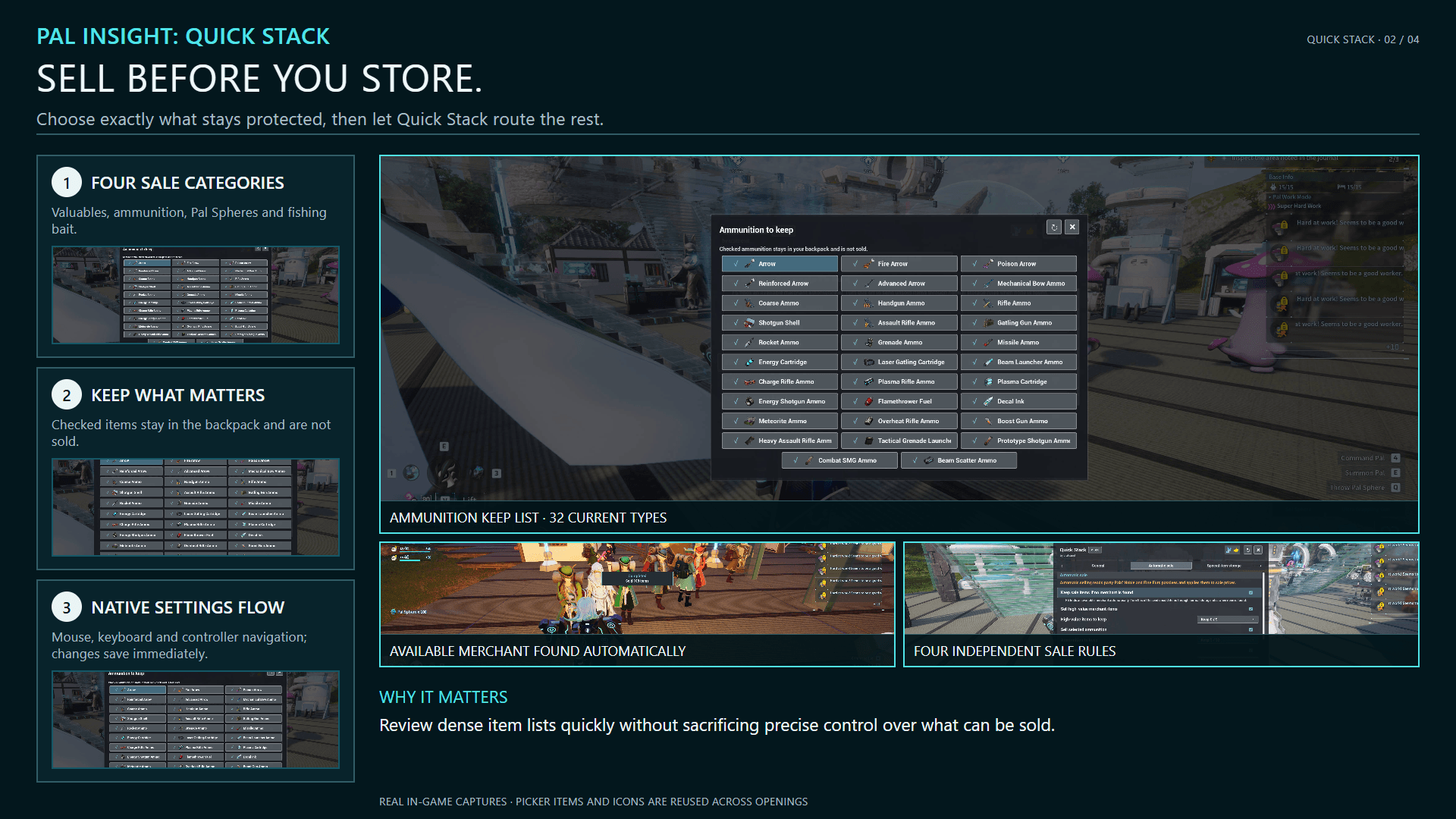
- Redesigned all four automatic-sale keep-list pickers—valuables, ammunition, Pal Spheres, and fishing bait—to match Pal Insight's native settings style.
- Each picker now uses a wider viewport-safe panel, a stable grid of up to three columns, fixed checkmark/icon/name slots, and header actions for Restore Defaults and Close.
- Improved mouse, keyboard, and controller navigation throughout the item grids and header actions. Changes continue to save immediately; Restore Defaults clears the active keep list without closing the picker.
- Improved stopped-job diagnostics. Notifications now consistently show a stable reason code and processing phase, while logs retain the detailed underlying cause.
- Item names, icons, and picker controls are reused across openings. Icon preparation remains sliced across frames to avoid a large single-frame stall.
- Fixed settings content shifting horizontally when switching between tabs with and without a scrollbar.
Version 1.4.0 moved in-game settings into Pal Insight's F6 > Extensions page, unified the control guide and status colors, and fixed settings access.
Quick Start
- Install the experimental Palworld build of RE-UE4SS.
- Download the package matching your game: Steam/Win64 or Game Pass/WinGDK.
- Extract it into the Palworld game folder that directly contains the Pal directory.
- Enter one of your bases and press F5.
For in-game settings, install and enable current Pal Insight, then open F6 > Extensions > Pal Insight: Quick Stack. Without Pal Insight, F5 uses saved or default settings and text notifications.
Use one installation channel only. Do not combine CurseForge, Nexus Mods, or Steam Workshop copies, and do not mix Win64 and WinGDK packages. Close Palworld completely before installing or updating.
Automatic Selling
Quick Stack can sell the following categories before storage:
- 9 high-value merchant items
- 32 ammunition types
- 10 Pal Sphere types
- 4 fishing baits
Each category is configured independently and disabled by default. Icon-assisted keep lists support all 17 Palworld interface languages and mouse, keyboard, and controller input.
Checked items are kept. Items excluded through Inventory Tab > R are always protected from selling.
Review each keep list before enabling it. The high-value category initially allows all 9 supported items to be sold; the other categories initially keep all supported items.
F5 searches the current base for an available merchant. Sale prices include Noble and Fine Furs passives from party Pals. If no merchant is found, sale items stay in the backpack by default; disable Keep sale items when no merchant is found to let them continue through normal storage rules.
What Quick Stack Moves
Quick Stack handles the normal backpack inventory only. It does not move equipped items, food-slot items, Key Items, or items outside the supported inventory area.
It uses storage facilities from your current base only. By default:
- Items ignored through Inventory Tab > R stay in your backpack.
- Compatible ordinary storage may receive eligible item types even when it does not already contain the same item.
- Pal Eggs use available Incubators only.
- Ancient Civilization Relics use Ancient Relic Recyclers only.
- Each Recycler keeps 10 World Tree Holy Water.
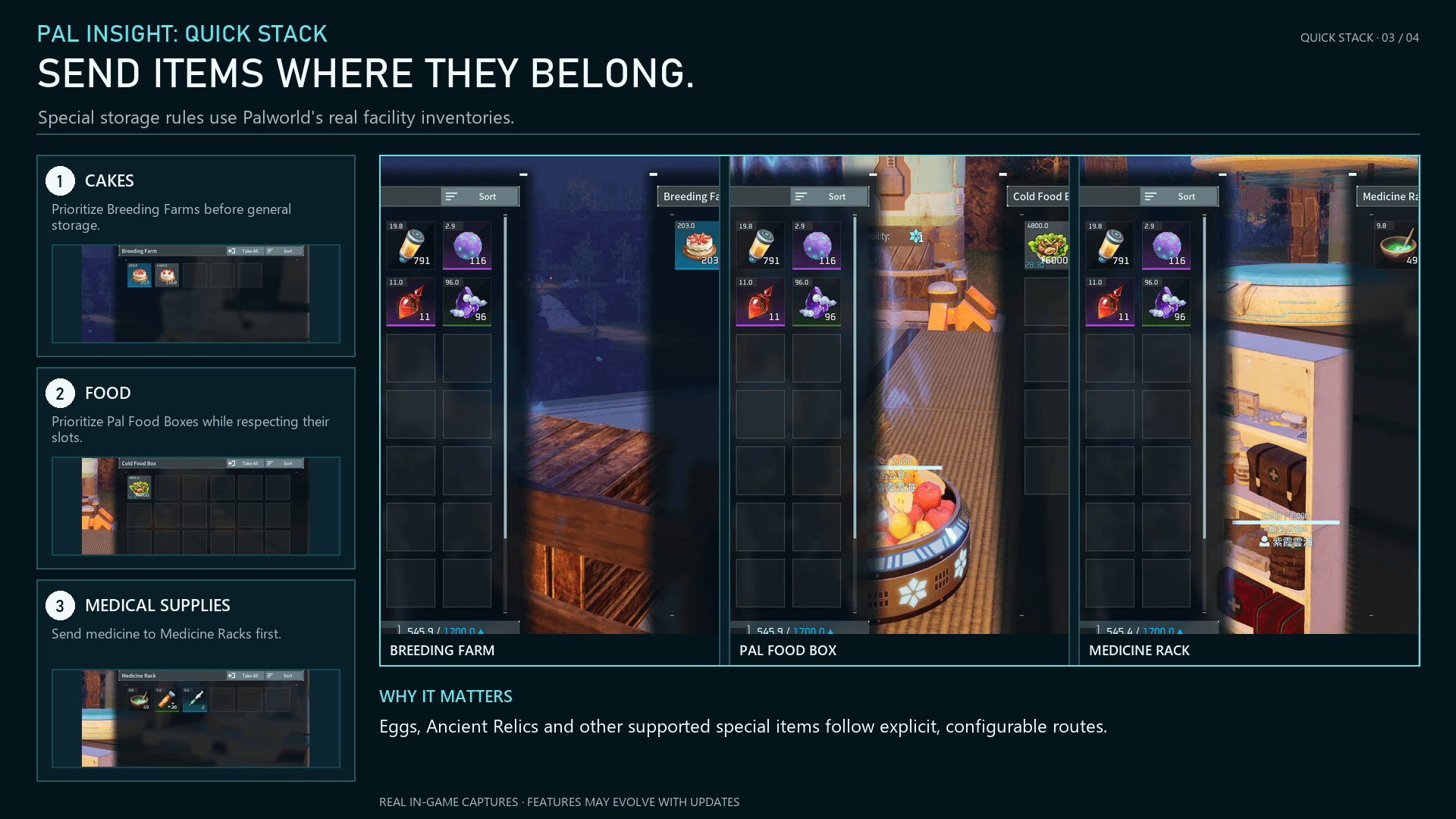
- Food uses dedicated routing: the 5 cakes prefer Breeding Farms, while other food prefers Pal Food Boxes; both continue through cold storage and ordinary storage.
- Medicine Rack priority, Guild Chests, and small Incubators are disabled.
Quick Stack never changes Palworld's ignored-item list.
Configurable Storage Rules
From Pal Insight > F6 > Extensions > Pal Insight: Quick Stack, choose whether Quick Stack may also store:
- Items currently marked as ignored
- Item types not already present in ordinary storage
- Items in an accessible Guild Chest belonging to the current guild base
Medical Supplies
Enable Medicine Rack priority to route the 3 current medical supplies to a usable Medicine Rack first. If no rack is available or all racks are full, the items continue to ordinary storage. This option is disabled by default.
Food
Dedicated food routing is enabled by default:
- The 5 cakes use Breeding Farms first, then cold storage, then ordinary storage.
- Other food uses Pal Food Boxes first, then cold storage, then ordinary storage.
- Cakes never enter Pal Food Boxes.
Inventory Tab > R exclusions remain protected, so use them for food or dishes you want to keep in your backpack.
Pal Eggs
- Incubator only — default
- Incubator, then regular storage
- Manual placement — leave Pal Eggs in the backpack
Large Incubators are used first. When enabled, empty small Incubators are used after the large ones are full. Incubators containing an egg or an unclaimed Pal are skipped.
Ancient Civilization Relics
- Recycler only — default
- Recycler, then regular storage
- Manual placement — leave Relics in the backpack
The World Tree Holy Water reserve for each Recycler can be set from 1 to 100. The default is 10; any remainder follows ordinary-storage rules.
Disabling storage of new item types affects ordinary storage only. It does not prevent dedicated routes from using an empty compatible destination.
Result Display
- Automatic
- Text Only
- Result Window
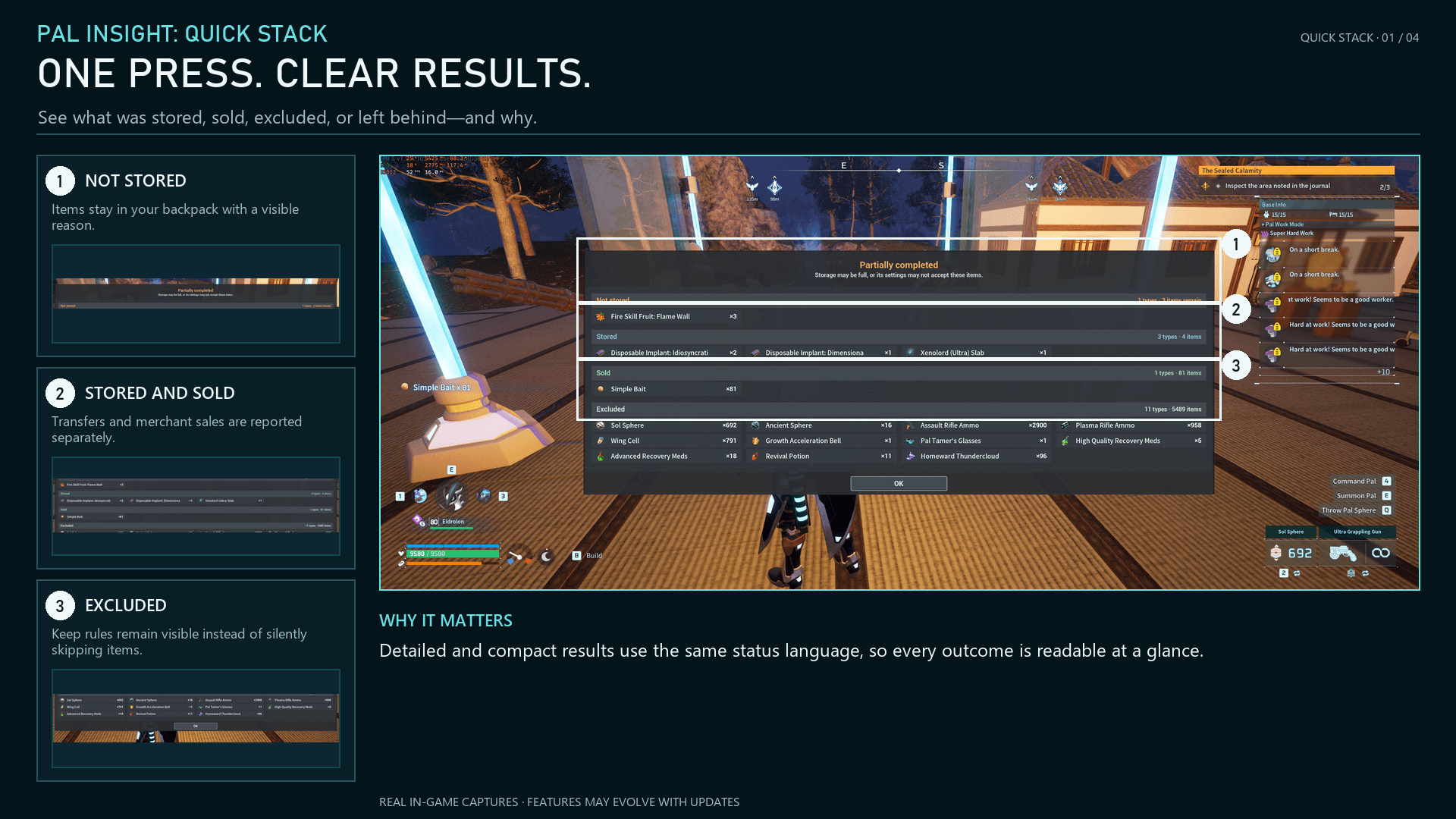
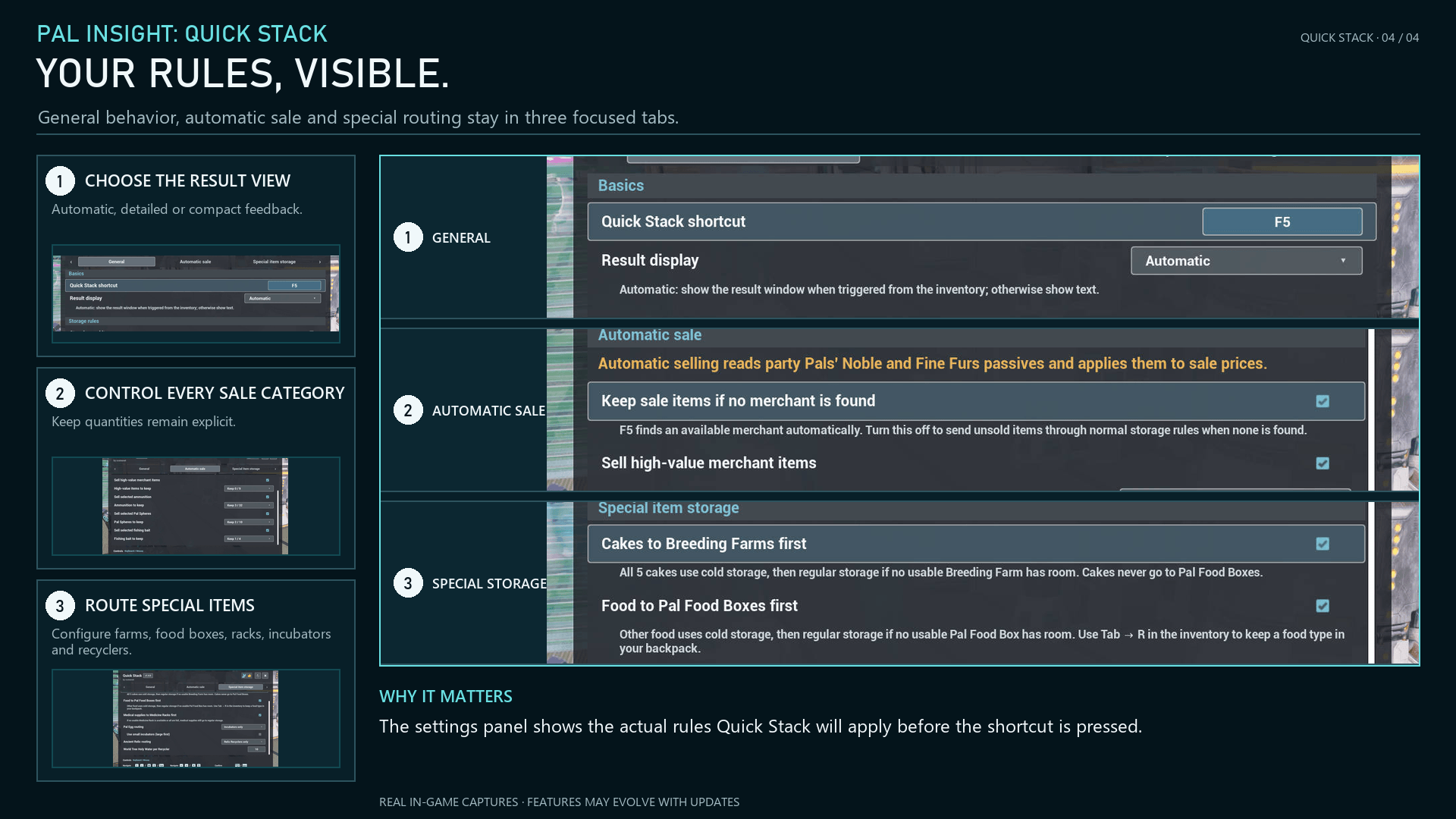
Automatic mode opens the detailed result window when F5 is triggered from the Inventory screen and shows a text notification elsewhere. Text Only always uses text, while Result Window requests the detailed panel everywhere.
Result windows and compact notifications use consistent category colors: green for sold, blue for stored, muted gray for excluded, and yellow for unfinished items. The detailed window uses Palworld's native icons and localized names and supports mouse, keyboard, and controller input.
If the detailed window cannot open safely, Quick Stack falls back to a text notification. An item is reported as sold or stored only after the backpack confirms that its quantity decreased.

Settings and Pal Insight
Quick Stack owns its settings and remains fully functional through F5 without Pal Insight. Current Pal Insight provides the in-game settings entry and shared controls.
- Both mods active: Open F6 > Extensions > Pal Insight: Quick Stack.
- F5: Runs Quick Stack's selling and storage action.
- Without active Pal Insight: Saved or default settings still apply. There is no standalone F6 settings panel, and results use text notifications.
Settings are organized into General, Automatic Sale, and Special Items tabs. Use the mouse, keyboard, controller, or the visible arrows on both sides to change tabs. Small-Incubator usage and World Tree Holy Water quantity are shown as child options of their corresponding routing settings.
Configure the shortcut, result style, automatic selling, keep lists, ordinary-storage rules, Medicine Rack priority, food routing, Guild Chest, small Incubators, Pal Egg routing, Relic routing, and World Tree Holy Water reserve in game.
Pal Insight opens Quick Stack's own panel and provides its shared control guide. Quick Stack still owns selling, item movement, and saved settings. Use current Pal Insight for integration.

Settings are stored at %LOCALAPPDATA%\Pal\Saved\PalInsightQuickStackSettings.lua. Mod updates do not overwrite them. Existing 0.1.x settings are imported automatically, and the old configuration file is left unchanged.

Requirements and Packages
Steam / Win64
- Palworld 1.0 or later
- Experimental Palworld build of RE-UE4SS
Steam users may alternatively install the UE4SS Steam Workshop package.
The correct Palworld UE4SS runtime is not currently available as a CurseForge Related Project, so install it from one of the official pages above.
Xbox App / PC Game Pass / Microsoft Store — WinGDK
Use the additional archive explicitly marked Game Pass/WinGDK and install it manually. The CurseForge App's Palworld support targets Steam.
The WinGDK package has passed static package validation, but representative Game Pass runtime acceptance remains unverified. The standard Win64 archive is not a Game Pass package.
Safety and Performance
Before every sale or item move, Quick Stack rechecks the local player, current base, source item, destination, storage filters, permissions, exclusions, and capacity.
Work is split into bounded steps, and destination requests are sent one at a time. Quick Stack stops when required state can no longer be verified—for example after leaving the base, changing worlds, or changing characters.
Avoid other inventory operations while the progress notification is visible.
Compatibility Status
- Core single-player flow on Steam: Tested
- All 17 Palworld interface languages: Supported
- Pal Insight 2.0.0 integration: Supported
- Dedicated-server client: Item moves work with a client-side-only installation, but workbench counts may remain outdated until the storage area becomes network-relevant. The current Quick Stack package has no server-side relevancy component; installing it on the server does not remove this limitation.
- Co-op: Not verified
- Game Pass runtime: Not verified in game
Troubleshooting
F5 Does Nothing
- Confirm that your character is inside a base.
- With Pal Insight active, verify the shortcut under F6 > Extensions > Pal Insight: Quick Stack. Otherwise, check the saved configuration after closing the game.
- Check that the package matches Win64 or WinGDK.
- Confirm that only one Quick Stack installation is present.
- Check
UE4SS.logto confirm that Quick Stack loaded.
Items Were Not Sold or Stored
- Check the sale category and keep list.
- Check Inventory Tab > R.
- Check Medicine Rack, food, Pal Egg, Relic, and ordinary-storage routing settings.
- Check storage filters, permissions, and capacity.
- Confirm that the item belongs to the supported normal backpack.
- Make sure an available merchant is present in the current base. The F5 result reports when none is found.
Workbench Counts Are Outdated After F5 on a Dedicated Server
The items may already have moved correctly. After entering or fast-travelling to the base, walk near the storage area once, then reopen the workbench. A complete fix requires a separate server-side storage-relevancy mod; Quick Stack neither provides nor requires one.
Reporting a Problem
Include your platform, installation channel, game mode, relevant versions and settings, exact reproduction steps, expected and actual results, the complete UE4SS.log, and original crash files when available.
Palworld Breeding Calculator
Use the CrateX.app Palworld Breeding Calculator to import a save, compare routes using Pals you already own, or search general breeding combinations. Save processing runs locally in your browser and remains on your device.


Other Download Channels
Acknowledgements
With Pal Insight installed, open F6 > About > Special Thanks in game.
The Pal Insight: Quick Stack - Sell and Store Backpack Items with One Key Team