


Construction Toolkit
0-thumb.jpg
1-overhang.jpg
2-world-settings.jpg
3-free-building.jpg
4-loom-outdoors.jpg
Description
Construction Toolkit
Build overhangs without stability getting in the way, build for free, use the Loom without a roof, and upgrade a wall without tearing it down.
It also tells you why a piece won't place, and how stable every piece is.
Needs UE4SS. Mod Menu is optional. Stations, reach, rotation and upgrades are for the host or solo play.
Building kept stopping me. My overhang dropped at the fourth floor, the Loom wouldn't open until it had a roof over it, and to swap a wall for a better tier I had to take the old one down first and hope nothing on top fell. So I made this. Everything that changes how building works is either off by default or something you pick yourself.
What it does
- No Building Stability, free building and all pieces unlocked on your normal world: the game's own options, shown in Edit Settings for a world you already have.
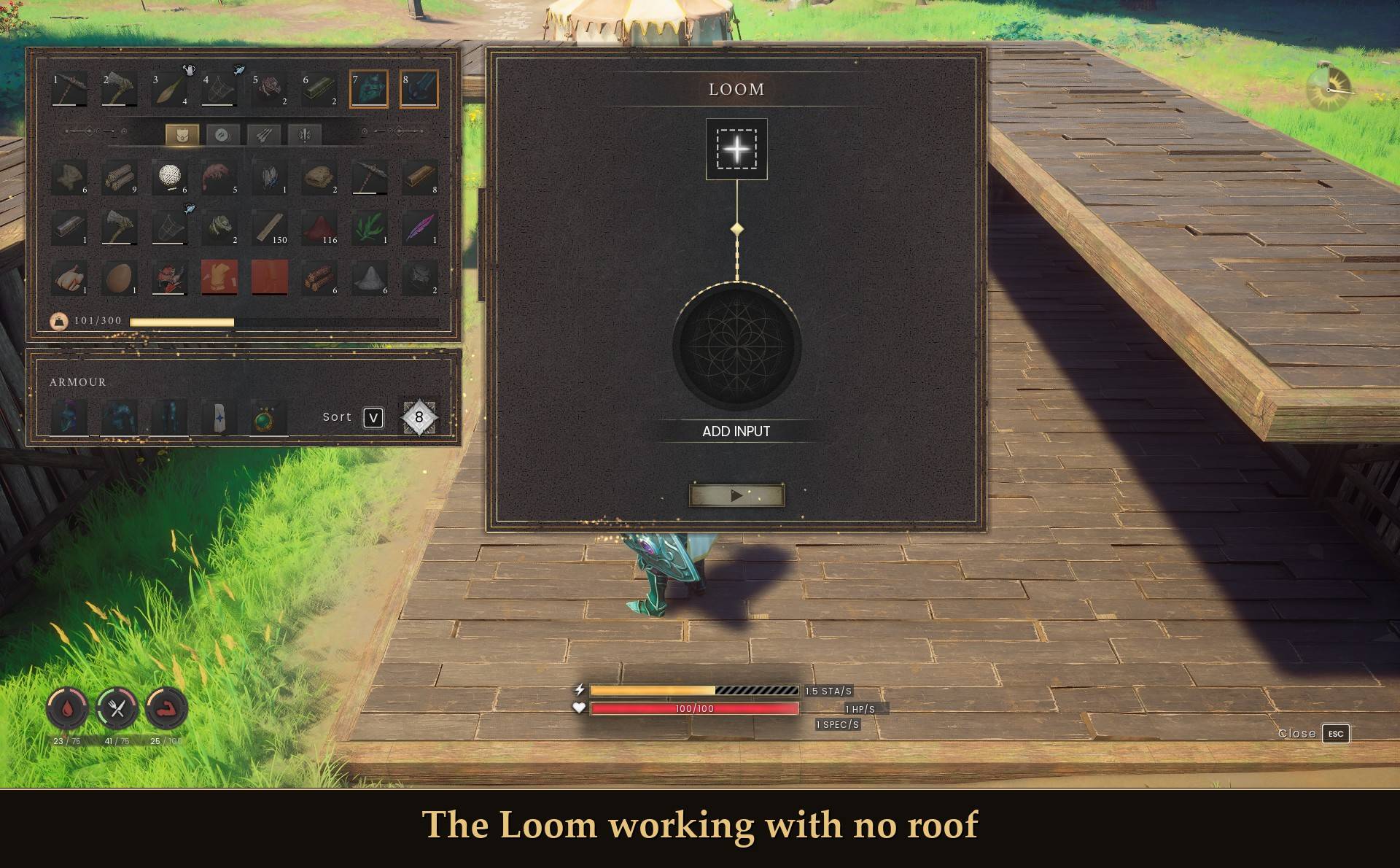
- Stations without a roof: the Loom and the other roof-only stations work out in the open.
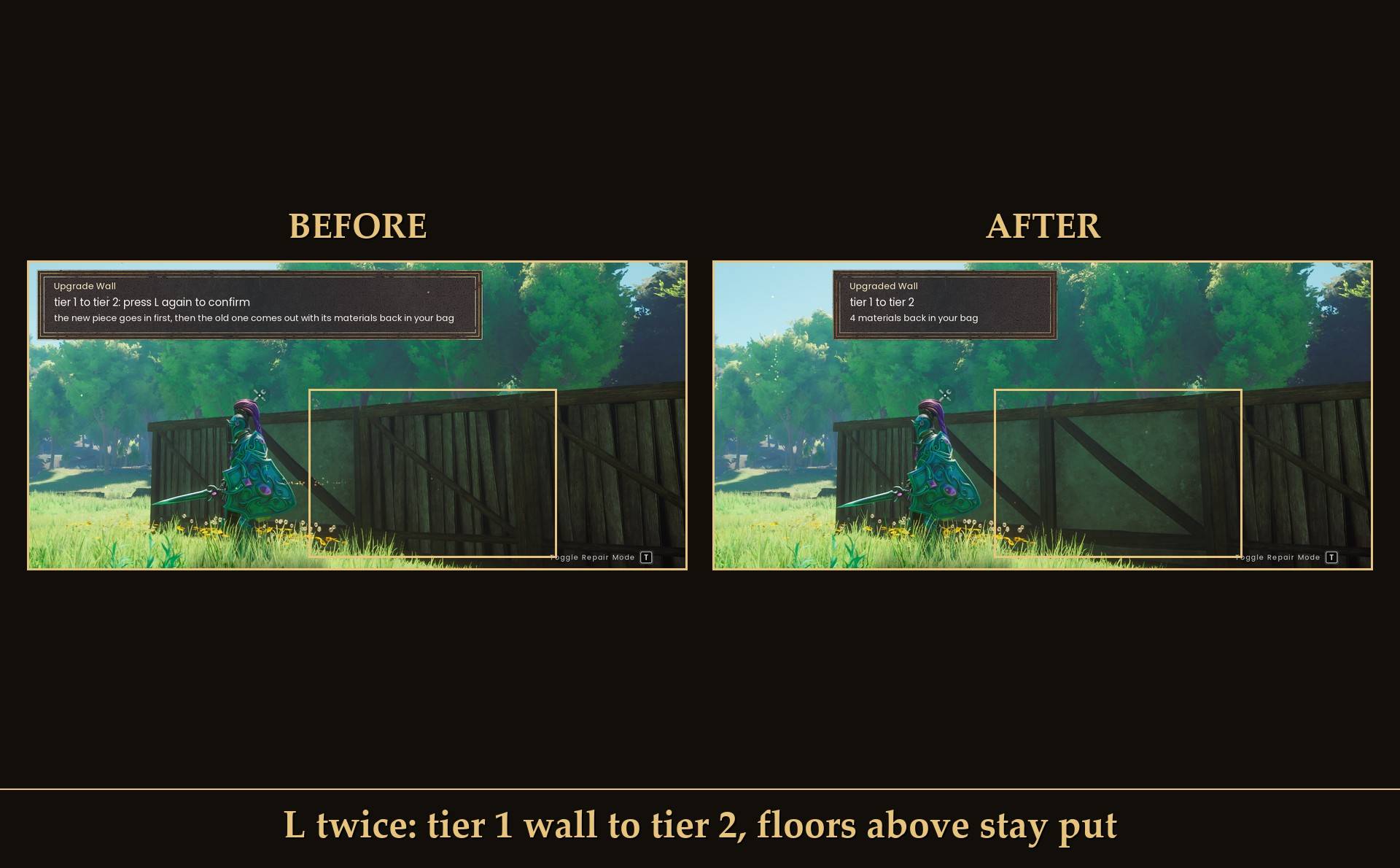
- Upgrade in place: aim at a wall, press L twice, and it becomes the next tier. What rests on it stays up, and you get the old materials back.
- Why a piece won't place: the readout tells you in plain words, like "not enough materials in your bag".
- Finer rotation: turn pieces in steps from 1 to 45 degrees instead of 15.
- Longer reach: place, repair and remove pieces from up to 3x as far away.
- Stability readouts: see how stable a piece is while you place it, and what holds up a piece you already built.
World settings: No Building Stability, free building, all pieces unlocked
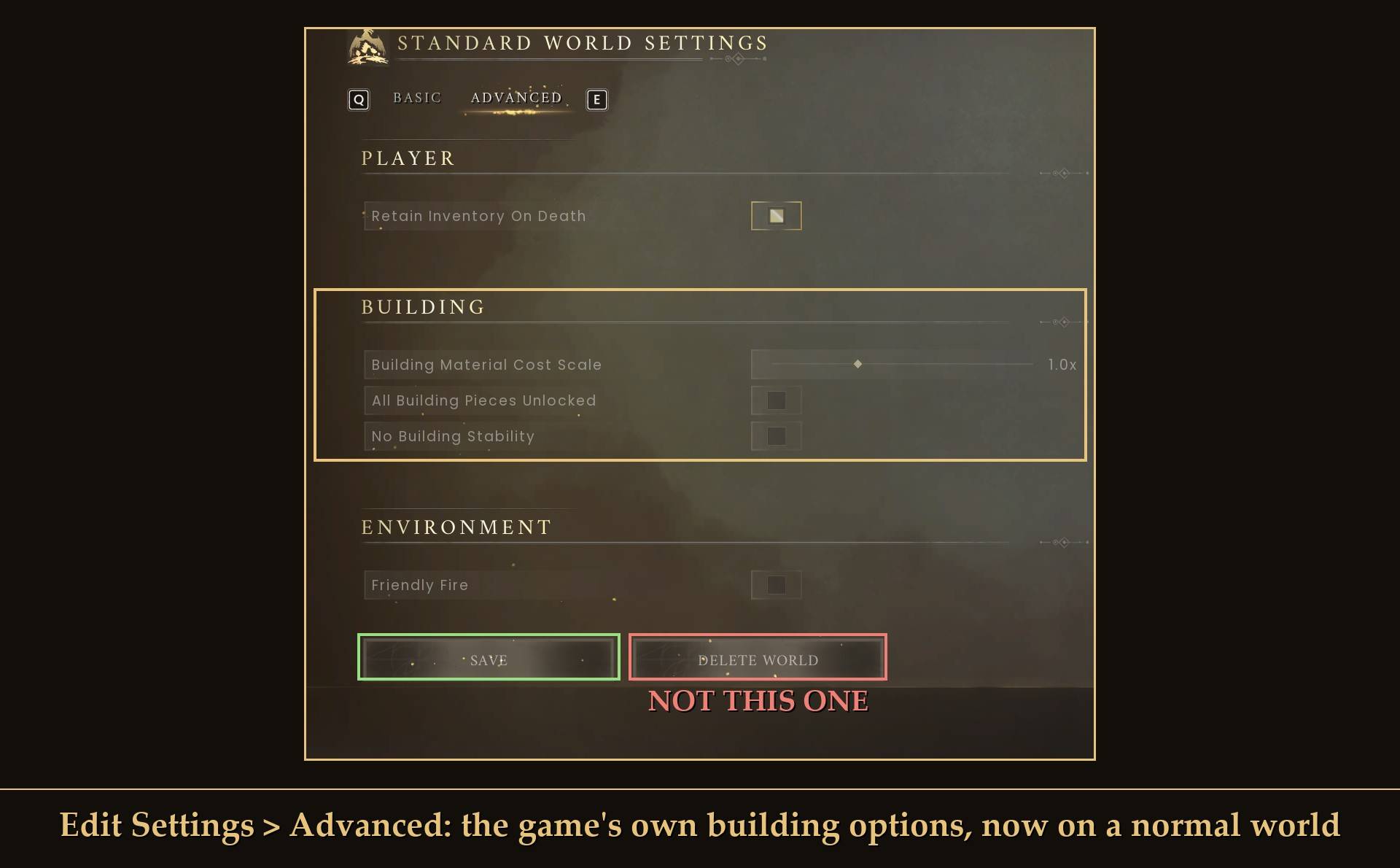
The game already has these three options, but only on Custom worlds, and No Building Stability is locked once the world is made. The mod shows them for a normal world too. It doesn't tick anything for you: you pick them yourself.
- From the main menu: Play Solo, pick your world, Edit Settings, then the Advanced tab.
- There's a new BUILDING section with Building Material Cost Scale, All Building Pieces Unlocked and No Building Stability.
- Tick what you want (drag the cost slider, clicking the bar doesn't move it), then press SAVE.
Careful: DELETE WORLD sits right next to SAVE on that screen.
- Your choice stays in your world, even if you remove the mod. I tested it: with the mod gone, the setting was still on and my overhang was still standing. The rows just aren't on the screen anymore, so to change it back you need the mod again.
- Think before you untick No Building Stability. When I turned it off again, the pieces that had no real support fell at once.
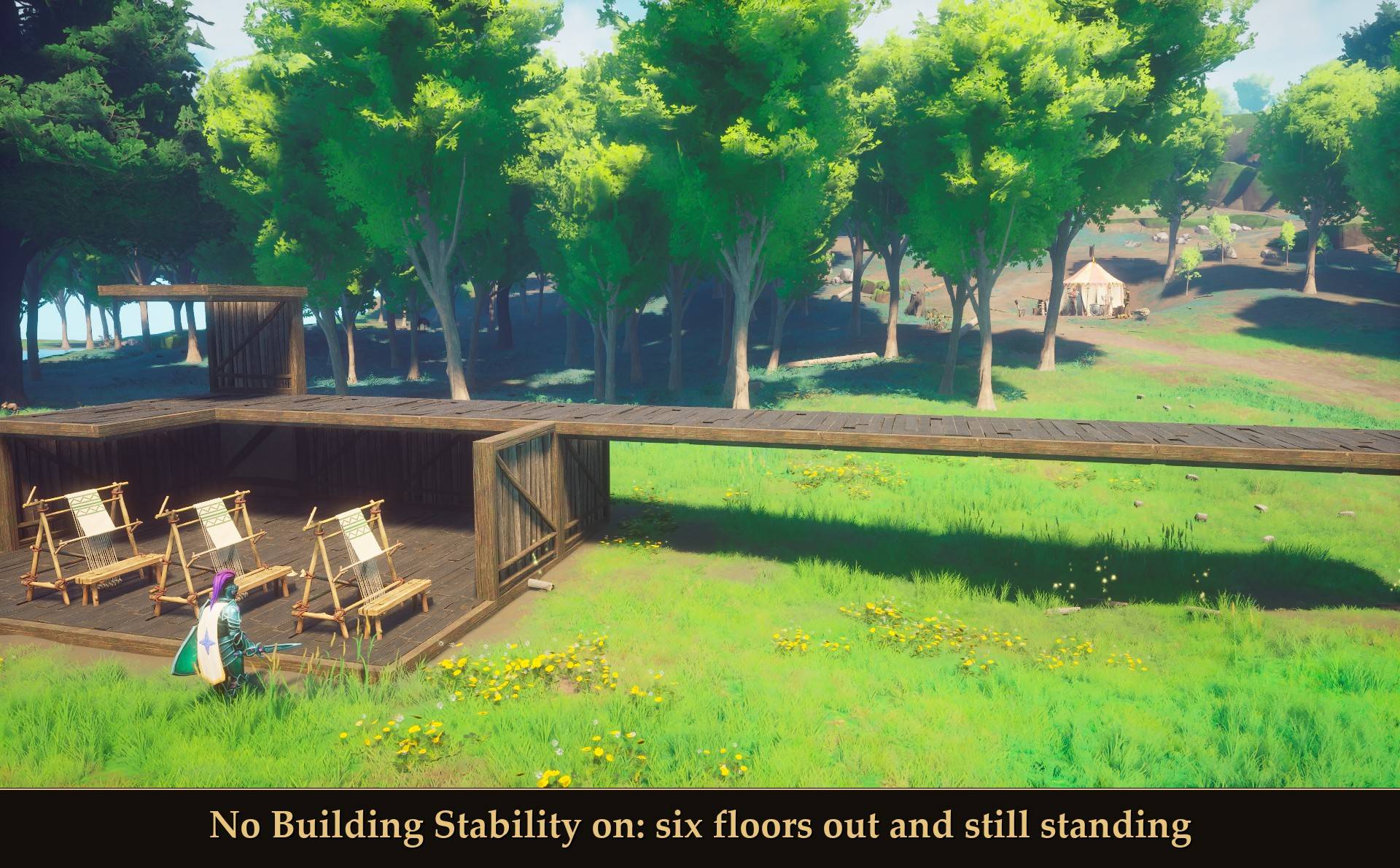
- No Building Stability doesn't let you float pieces. A wall in mid-air is still refused as unstable. What it does is let you keep building out: my test overhang of six floors stood, where the fourth floor fell without it.
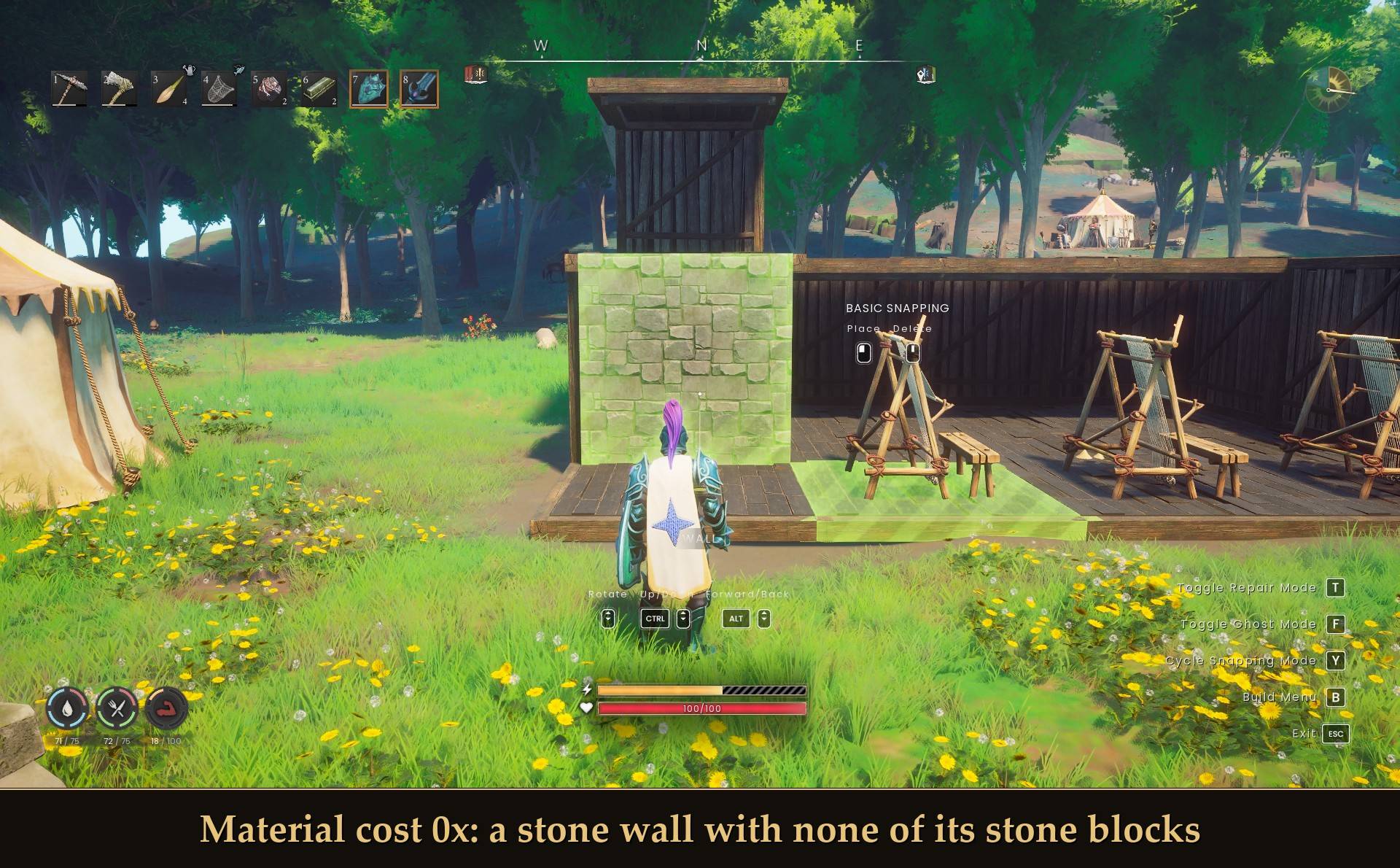
- With the cost at 0x, pieces cost nothing: I placed seven pieces and my bag didn't change, and a stone wall showed green with none of the stone blocks it needs.
Stations without a roof
Turn on Stations work without a roof and the Loom and the other stations that need a roof work in the open. It's off by default.
- It works on stations you already built and on new ones you place while it's on.
- Beds that need a roof are switched too (I saw the bedroll change, I didn't try sleeping in one outdoors).
- Stations that already work anywhere, and stations that must be outdoors, aren't changed.
- It isn't saved in your world. Turn it off (or remove the mod) and they need their roof again, including the ones you placed while it was on.
- Host or solo only.
Upgrade in place
- Open repair mode (B, then T).
- Aim at a wall, floor, roof or beam and press L. It tells you what it'll become, like "tier 1 to tier 2: press L again to confirm".
- Press L again within 5 seconds.
The next tier goes in first, in the exact same spot, and then the old piece comes out with its materials back in your bag. Anything resting on it stays up and stays attached. In my test the floors on top kept exactly the same stability, and I got the Construction XP for the new piece.
- It uses the new tier's recipe from your bag (and your personal inventory). If you're short, it says so and nothing changes.
- If the pieces on top would lose their support, it takes the new piece back out and leaves the old one alone.
- Foundations, pieces standing right on the ground, doors, chests, stations and beds are left alone, and so is anything already at the highest tier.
- Host or solo only. You can change the key in Mod Menu.
Why a piece won't place
When the game refuses your click, the readout shows its reason in plain words for a few seconds, like "last click refused: not enough materials in your bag" or "it overlaps another piece or object". If the ghost is red and your bag is short for it, you see that before you click: "red: likely not enough materials (1 kind short)".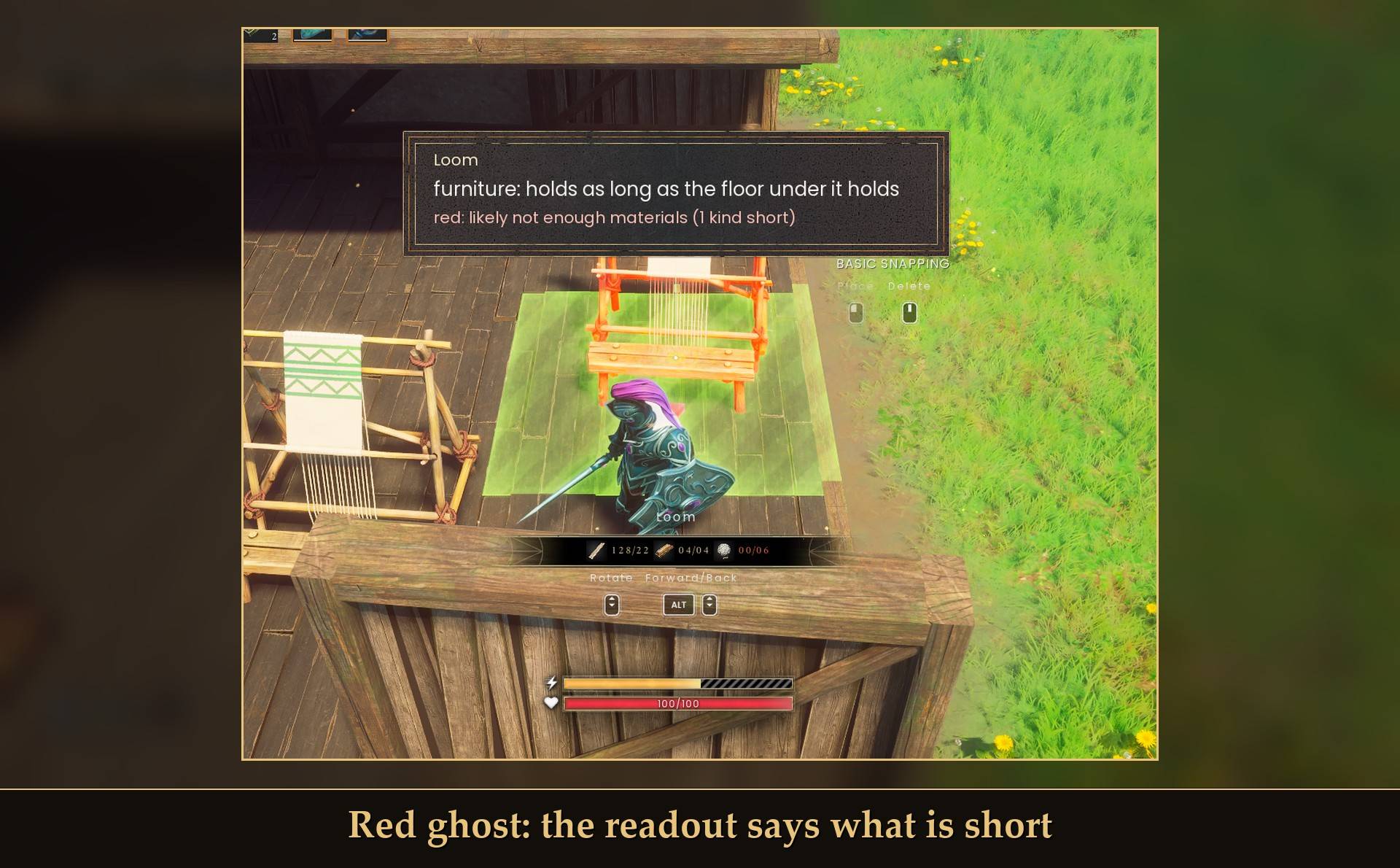
The game doesn't send a reason for every refused click. In my test it often sent one only the first time for each kind, so after that you only see the red-ghost line. The ghost outline in this game is only green or red, there's no yellow "almost" level.
Readouts
A small panel shows the numbers the game uses for stability.
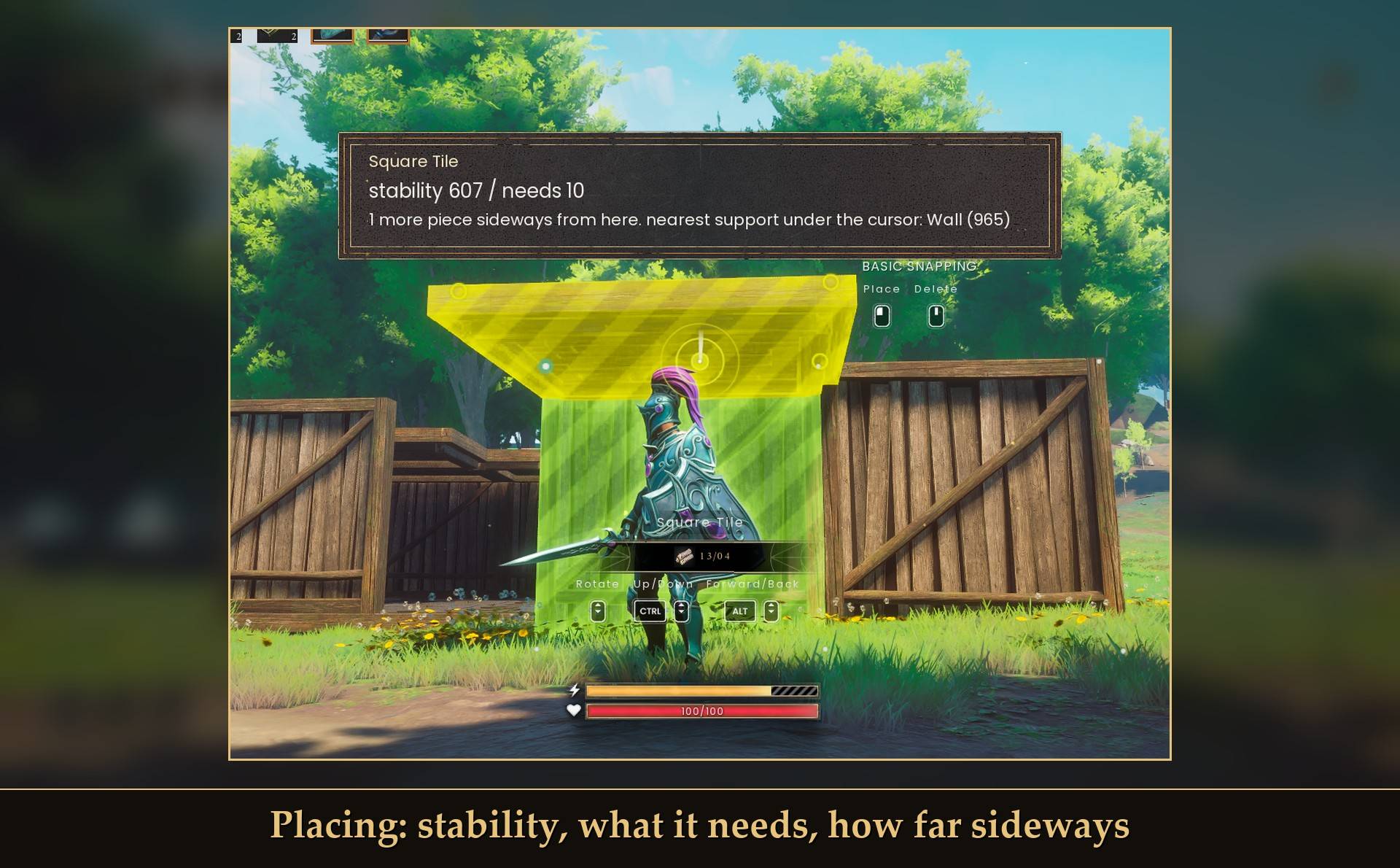
- While placing: the piece's predicted stability against the minimum it needs, how many more pieces it can reach sideways, and the nearest placed support under your cursor.
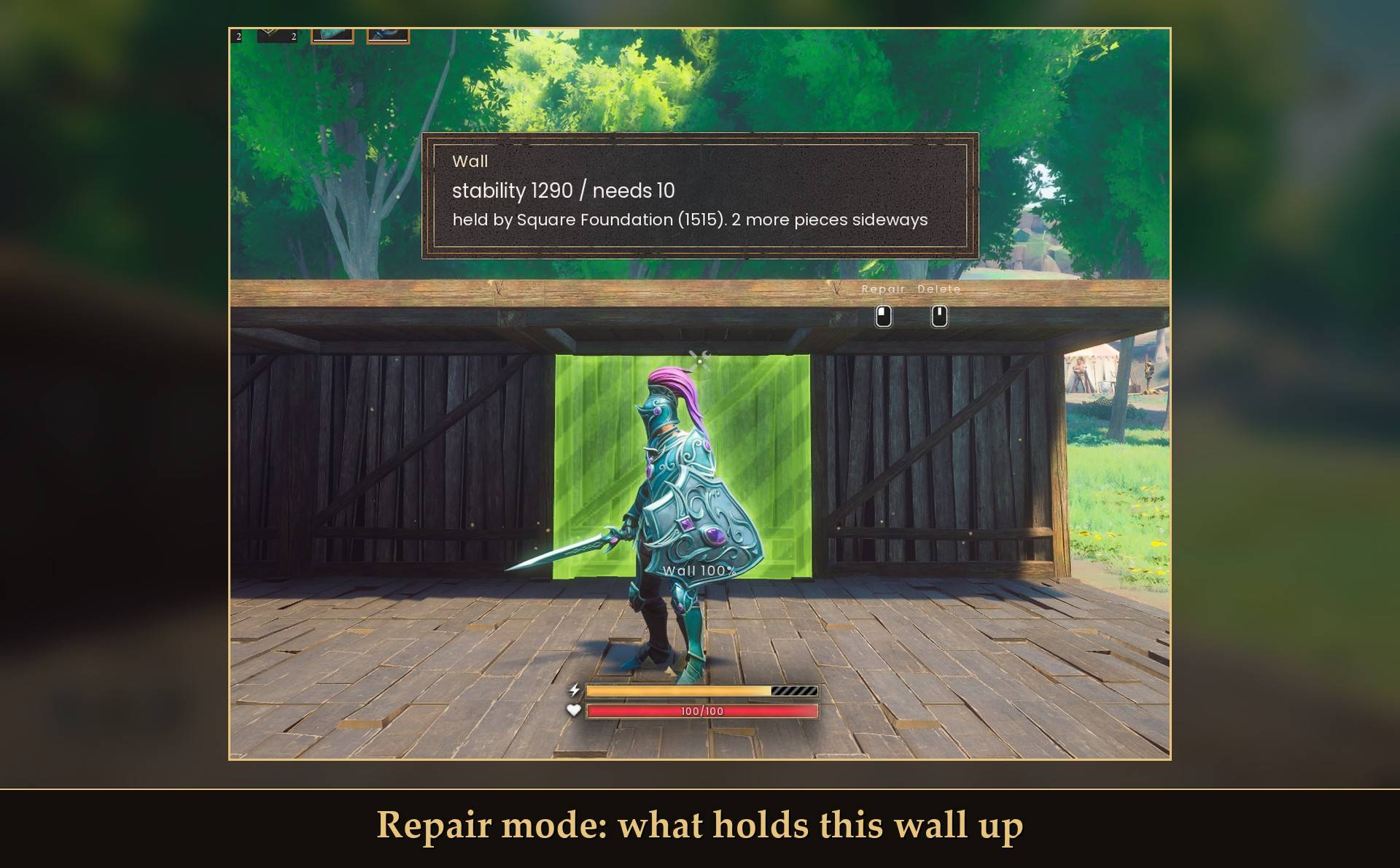
- In repair mode (B, then T): aim at a placed piece to see its live stability and what holds it up, like "held by Square Foundation (1515)".
- At a crafting station: whether it needs a roof, must be outdoors, or works anywhere.
Rotation and reach
- Rotation step: at 5, one mouse wheel notch turned my wall 5 degrees instead of 15.
- Build reach: at 2x I placed a wall 12.7 m away. At 1x the same spot was out of reach.
- Repair and remove reach: at 2x repair mode picked a wall 22 m away.
They apply straight away, and setting them back to normal puts the game's own values back.
Settings
All live in Mod Menu (Esc > MODS > Construction Toolkit), or in config.txt in the mod folder:
- Construction Toolkit on: on by default. Off puts every changed value back to the game's own.
- While placing a piece, Repair mode: aimed piece, Station roof check, Why a spot was refused: the readouts, each on by default.
- Building options in World Settings: on by default. It only shows the three rows, it doesn't change anything until you tick them.
- Stations work without a roof: off by default.
- Rotation step: 15 degrees by default (1 to 45). 15 is normal.
- Build reach: 1x by default (1 to 3x). Repair and remove reach: 1x by default (1 to 3x).
- Upgrade key on: on by default. It does nothing until you press the key.
- Upgrade key: L by default. Pressed twice within 5 seconds. A new key needs a game restart. Move Buildings uses Z, so they don't clash.
- Measure roof cover (experimental): off by default. Not tested in game yet, leave it off unless you're helping me test it.
- Extra log lines: off by default. More lines in UE4SS.log if something isn't working.
Install
- Install UE4SS for RSDragonwilds.
- Drop the
ConstructionToolkitfolder intoRSDragonwilds/Binaries/Win64/ue4ss/Mods/ - Optional: install Mod Menu to change the settings in game.
On Game Pass: use the BE version of UE4SS with the SCO signature, the normal build does not load there. Game Pass also installs the game under Binaries/WinGDK/ instead of Binaries/Win64/, so the ConstructionToolkit folder goes in RSDragonwilds/Binaries/WinGDK/ue4ss/Mods/. If you install with Vortex, check that is where it ended up.
To uninstall, delete the ConstructionToolkit folder. Anything you picked in World Settings stays in your world (see above). Everything else goes back to normal.
Good to know
- The mod never writes your save. The world settings are saved by the game itself when you press SAVE. An upgrade is the game's own place and remove, so your base is a normal base afterwards: after leaving and coming back, every piece was there once, with nothing doubled.
- Co-op: stations, reach, rotation and upgrades only work for the host or solo play. The world settings belong to whoever hosts the world. I haven't tested any of it in co-op.
- Turning a setting off (or the whole mod) puts the game's own values back straight away.
- Not sure it's running? UE4SS.log shows
[ConstructionToolkit] loaded v1.0.0.
What I tested
Tested on RuneScape: Dragonwilds 1.0 hotfix (build CL-244954) with UE4SS 3.0.1 stable, solo on Steam, with real key presses and clicks, on a normal (Standard) world. Not tested yet: co-op, a controller, Game Pass, Custom worlds, and upgrading floors, roofs and beams (I tested walls).
The Construction Toolkit Team
