EasyFind - Search Everything
- By
- Addons
banner_easyfind_collage.png
tutorial-use-outfits-hires.png
tutorial-search-settings-hires.png
tutorial-search-currency-hires.png
tutorial-search-sendlink-hires.png
tutorial-search-bags-hires.png
tutorial-use-titles-hires.png
tutorial-use-abilities-hires.png
tutorial-use-01-hires.png
tutorial-calculator-copy-hires.png
tutorial-calculator-visual-hires.png
tutorial-map-intro-hires.png
tutorial-map-zones-hires.png
tutorial-map-hover-hires.png
tutorial-map-rares-hires.png
tutorial-map-autotrack-hires.png
tutorial-search-filters-hires.png
tutorial-use-commands-hires.png
tutorial-use-mounts-hires.png
tutorial-use-02-hires.png
Description
EasyFind




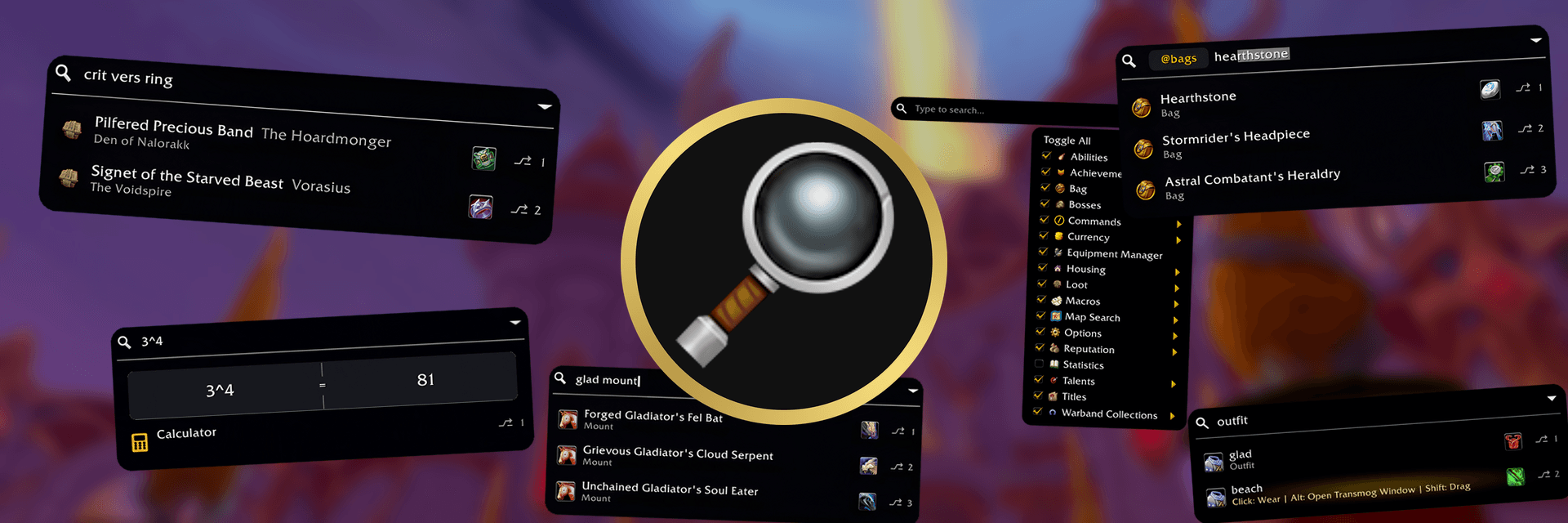
EasyFind is WoW's Raycast/Spotlight/Alfred: a fast command palette that lets you search most things in World of Warcraft.
How to Use
Press Ctrl+Space (the default Search Bar keybind, changeable during the tutorial or in EasyFind options) to show and focus the search bar, type what you want, then select a result. Press the keybind again or click anywhere outside EasyFind to close it.
Features
Main Search
Search across:
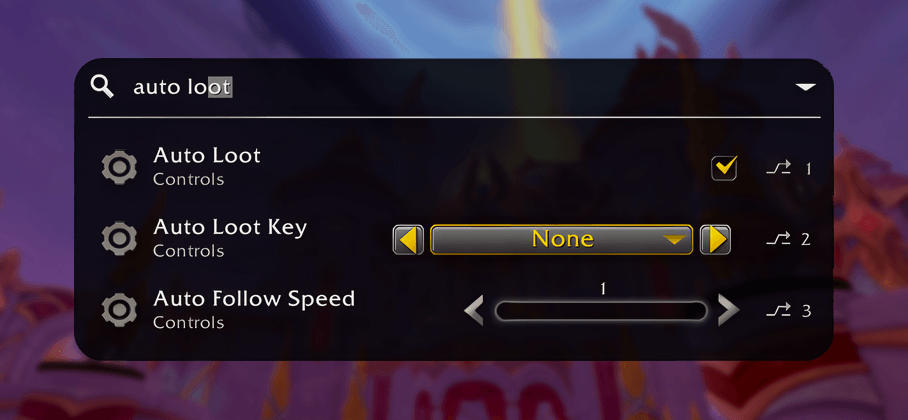
- UI panels, tabs, options, addon settings, and Blizzard settings.
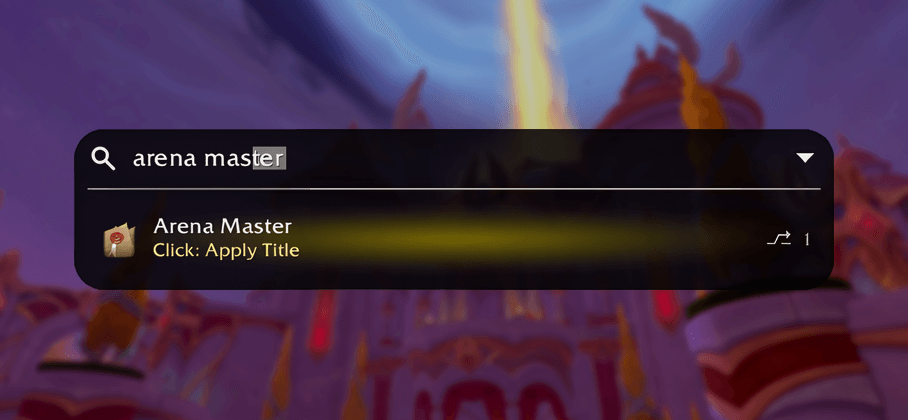
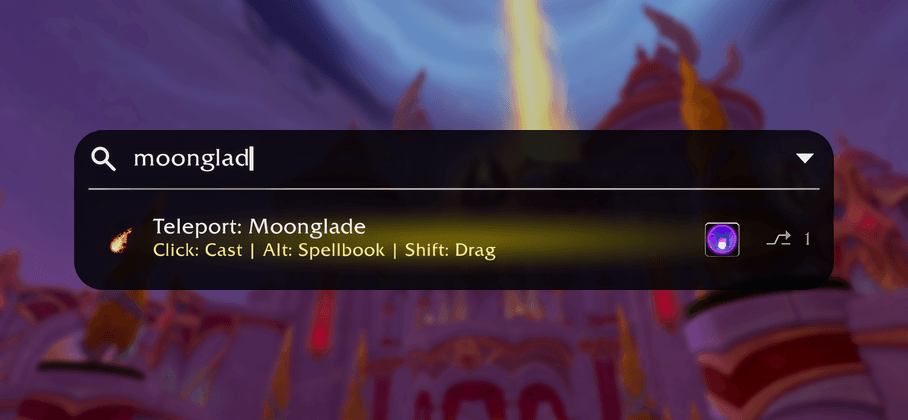
- Achievements, statistics, titles, reputations, currencies, talents, abilities, and spellbook entries.
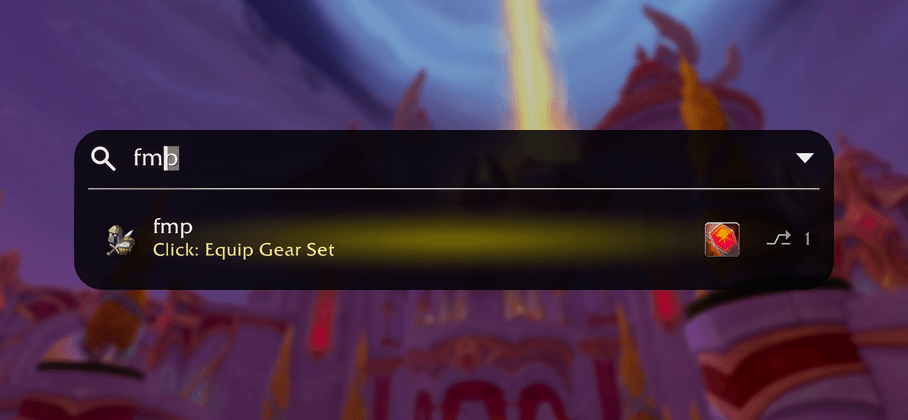
- Mounts, pets, toys, transmogs, outfits, heirlooms, gear sets, macros, bosses, loot, bag items, and housing decor.
- The full item catalog: every item in the game is searchable, not just the ones you own.
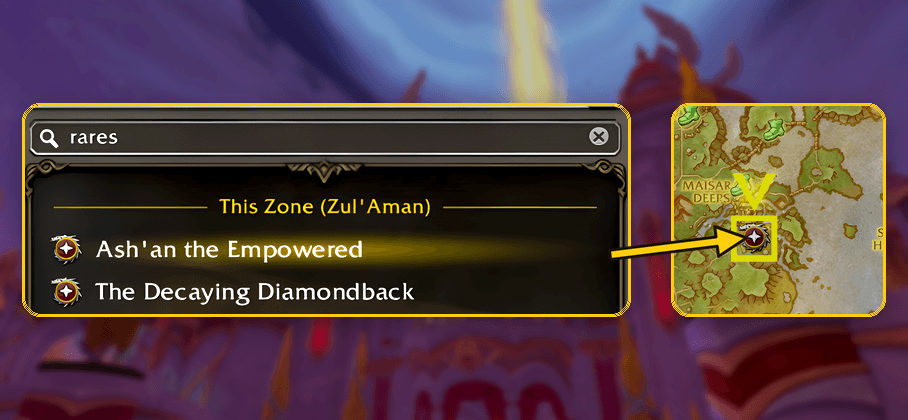
- Zones, dungeons, raids, delves, services (banks, AHs, trainers, training dummies, etc.), travel points, rares, and other map destinations.
Supported results can do more than just open a panel:
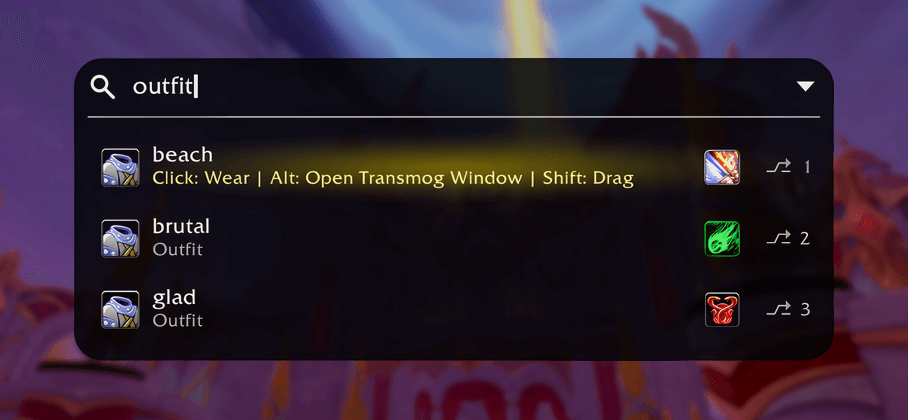
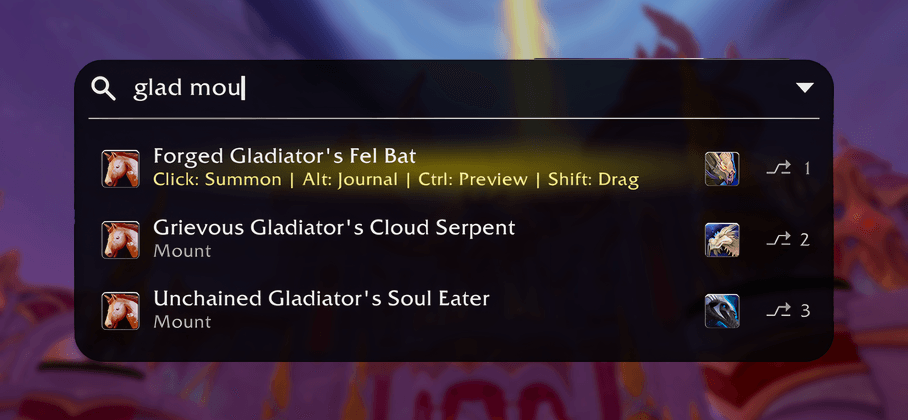
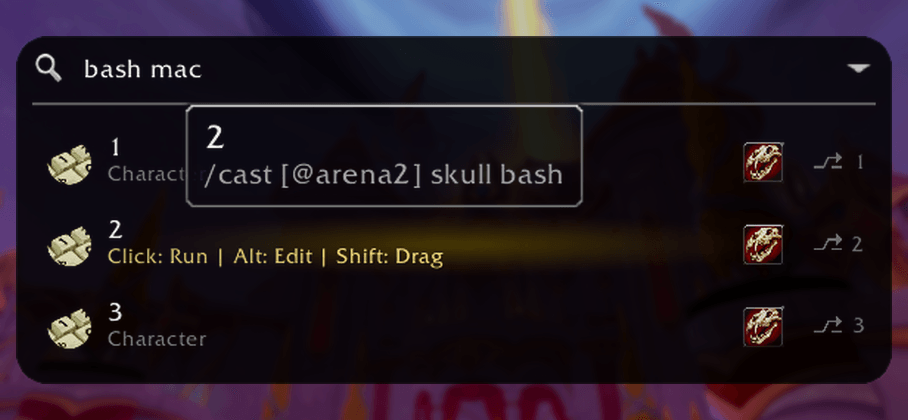
- Mount up, summon pets, use toys, equip outfits, run macros, and cast or use abilities directly from search.
- Shift-click and drag supported abilities from results to drag them to your action bars.
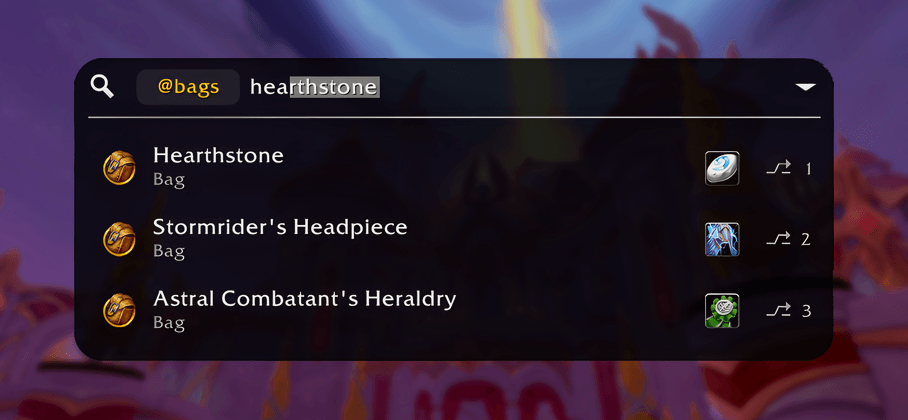
- Use consumables, equip gear, or Ctrl-click supported bag items to open and highlight the item in your bags.
- Open boss and loot entries in the Encounter Journal.
- Guide to collection entries, favorite pets, rename pets, and open supported collection tools.
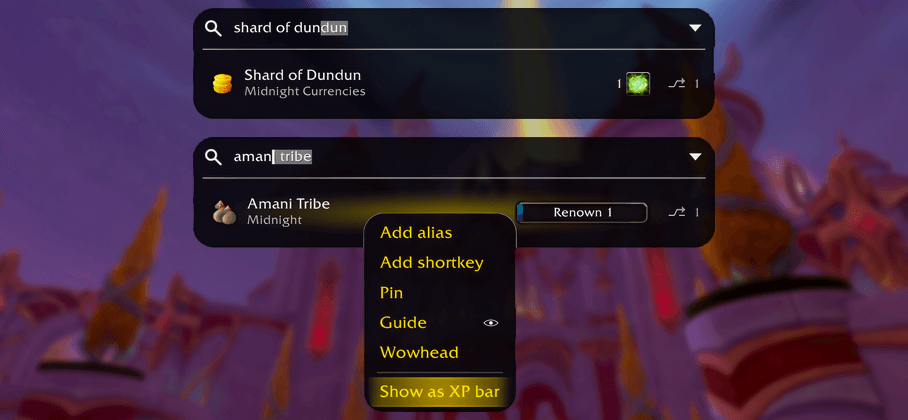
- Do things like set reputation as XP bar, add currency to backpack, rename pets, etc. all from the search results via the right-click menu (see more details in search tools section below)
Map Search Tab
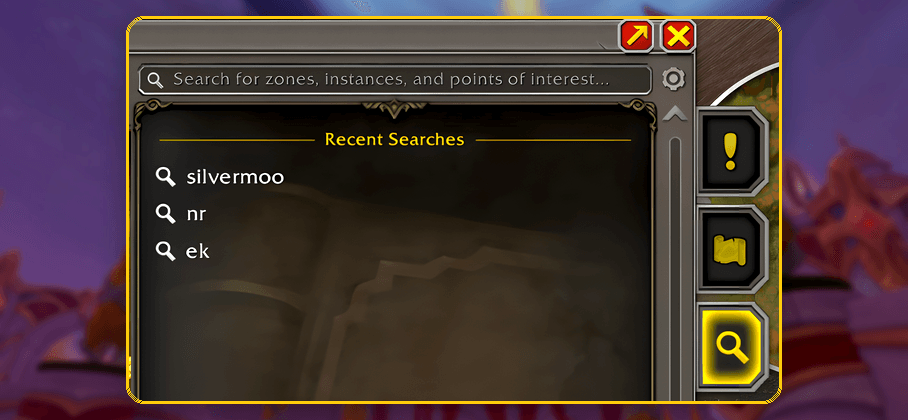
Search from the world map with nested results built for location-first browsing:
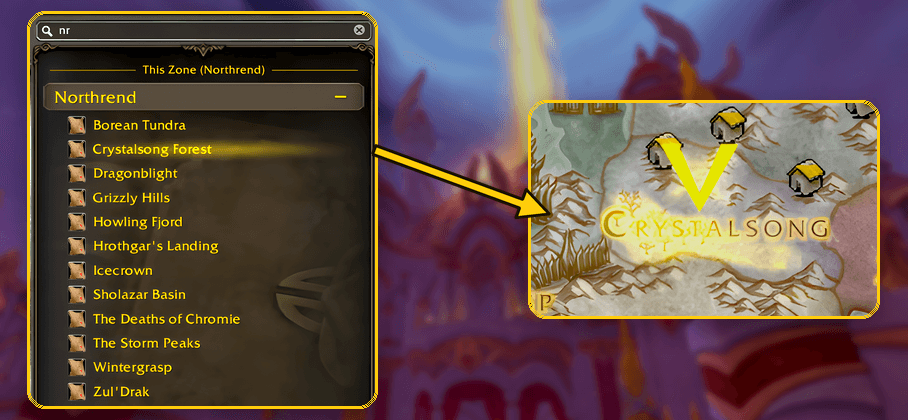
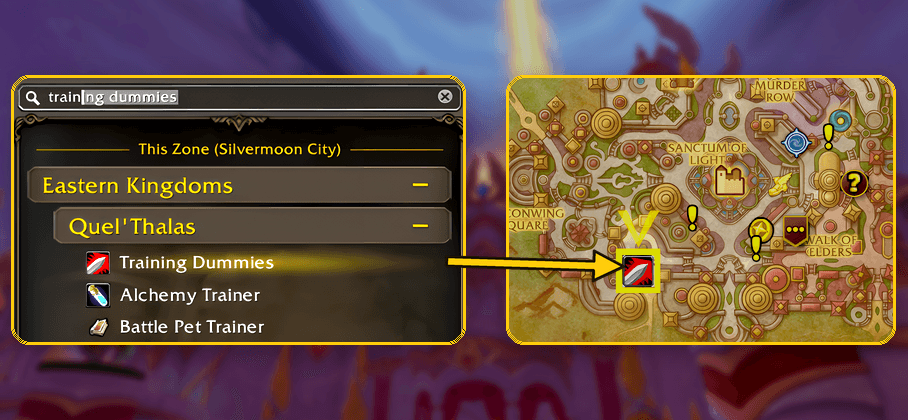
- "This Zone" shows matches on the map currently being viewed.
- "Across the World" groups broader matches by continent and zone.
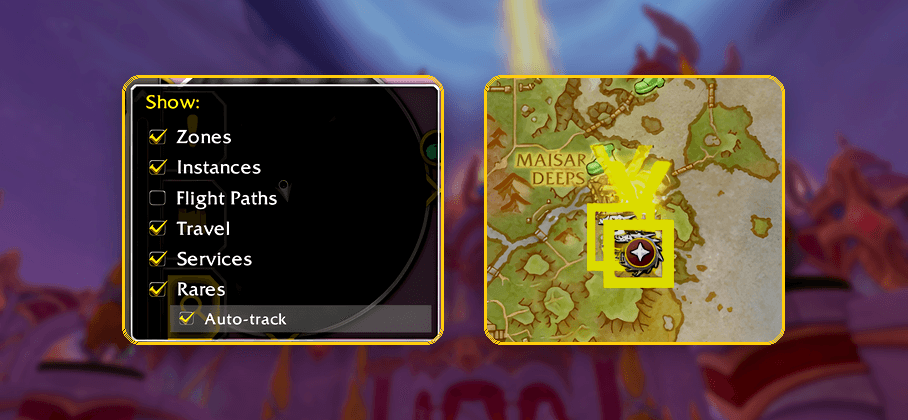
- Hover map results for POI previews, navigate between zones, place pins, and track destinations.
- The same map results can also be found from the main search bar, just without the nested map layout.
Search Tools
Right-click context menu:
On every result:
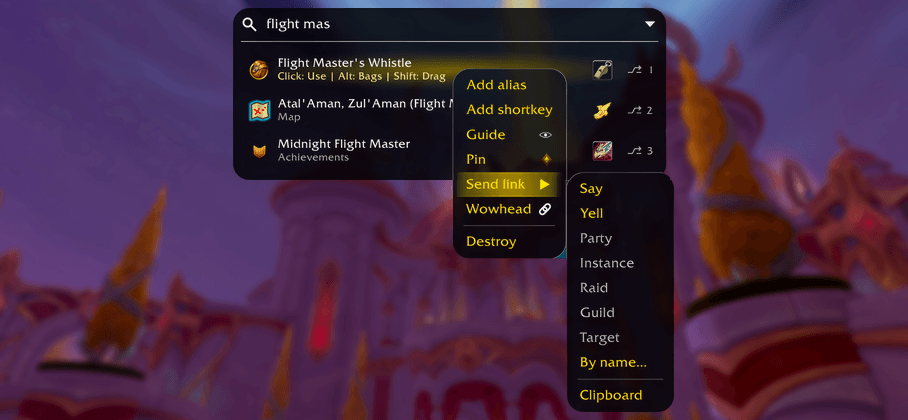
- Pin: Keep it visible before typing.
- Shortkey: Bind a key that opens or uses the result instantly, without opening the search bar or taking up action bar slots.
- Add Alias: Add your own search terms. Aliases are shared between normal search and map search where applicable.
- Blacklist: Keep a result out of every search. Restore it any time from the Blacklist tab in the options menu.
On most results:
- Guide: Walk to the result with step-by-step highlights.
- Send: Share a clickable link in chat (Say, Yell, Party, Instance, Raid, Guild, or a whisper), or copy it to your clipboard.
- Wowhead: Copy the result's Wowhead URL to your clipboard.
Row-specific extras, for example:
- Achievements: objective tracking.
- Currencies: backpack pinning and currency transfer.
- Reputations: watched-faction toggle.
- Pets: summon, rename, favorite, cage or release.
- Transmog sets: favorite toggle.
- Bag items: destroy.
- Snippets: edit, delete, or send straight to chat.
Additional functionality:
- Apps button: A dot-grid button on the search bar opens the apps menu; Calculator, Icon Search, and Snippets live there, with more on the way.
- Snippets: Save text you type often and expand it anywhere with its keyword: type
\keywordin chat or the macro editor and it expands as you type. Placeholders such as{target}and{date}fill in at use, and call-form keywords like\greet(name)take arguments. Manage them from the apps menu, by searching "Snippets", or with the@snipquick filter. - Icon Search: Browse and filter every game icon in a grid via
@icons, the apps menu, or searching "Icon Search". Ctrl+C over an icon copies its ID, and a right-click offers its name, its path, or a new macro with that icon. The same search also appears inside the game's own macro icon picker. - Macro window search: The game's macro window gains a search bar that filters your macros by name or body as you type.
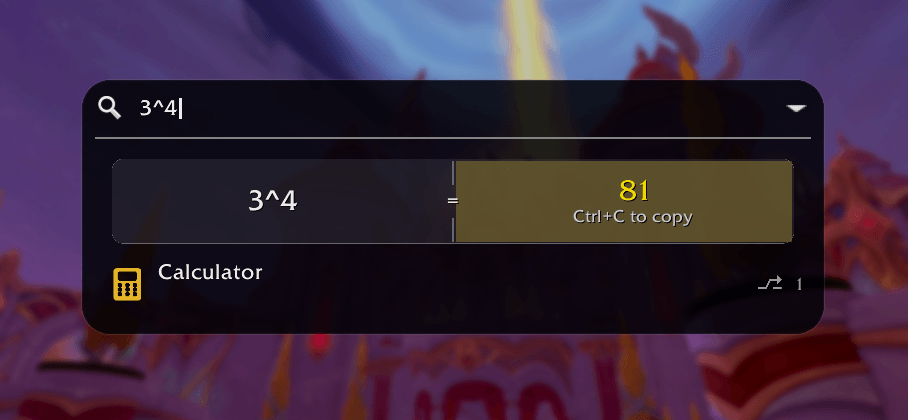
- Copy with Ctrl+C: Ctrl+C on a result copies a snippet's entire message, a link, or an inline answer to your clipboard, ready to paste wherever you want with Ctrl+V. Pasted into chat, an item, spell, or achievement comes back as the live link.
- Quick filters: Type
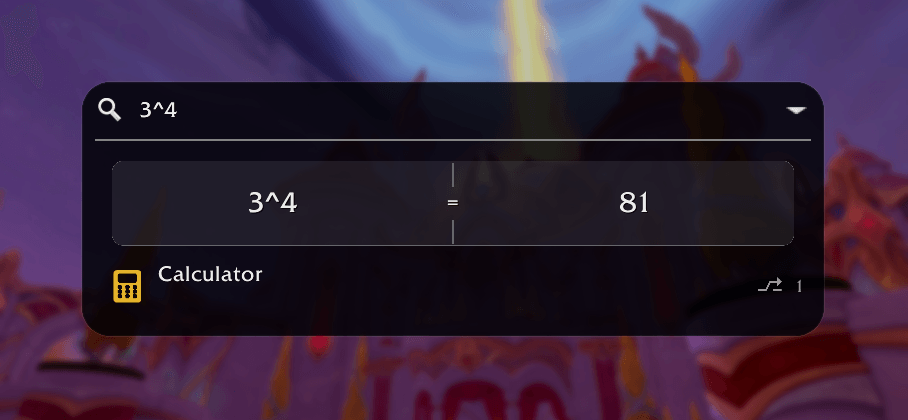
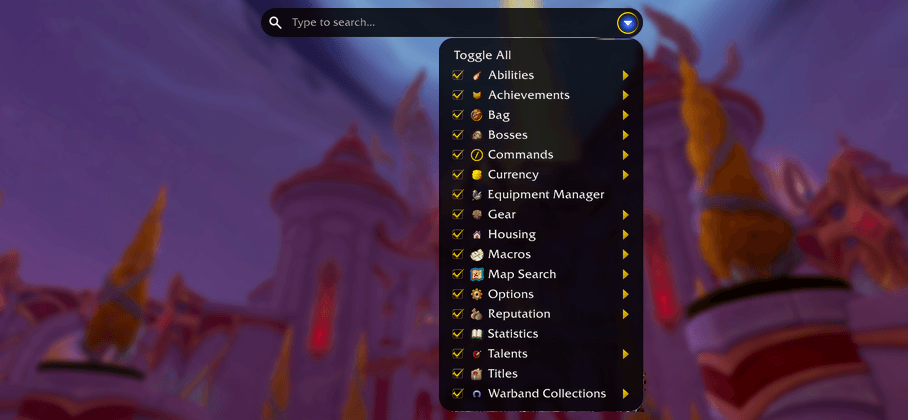
@to search within a category such as pets, mounts, bags, macros, abilities, achievements, statistics, bosses, gear, currencies, reputations, talents, titles, collections, snippets, or map results. - Calculator: Type math directly into search, including arithmetic, trig functions, factorials, and gold math (
4g / 5gives80s), or open the full calculator from the apps menu or withAlt+C. - Search learns from your picks: Pick a result after typing a query and it appears at the top the next time you type that search. Aliases you set yourself always outrank learned picks.
- Keyboard control: Use arrows, Enter, Tab, Alt+number row shortcuts, or Alt+H/J/K/L navigation. Right opens a focused result's context menu; Left or Shift+Tab backs out.
Options
Configure:
- Search behavior: visibility mode (auto-hide, hover show, or always show with combat options), result placement, visible row count, window border, fonts and font size, and Alt+number hints.
- Themes, window opacity, icon visibility, and the blacklist.
- Map Search behavior: map pins, icon sizing, tracking, recent searches, and result categories.
- Aliases, shortkeys, snippets, keybindings, indicator style/color, search window sizing, update reminders, and more.
Examples
talentswhen clicked from row opens (or guides if you right click and select guide) to the Talents panel.3v3will let you open instantly to the Rated Arena panel to get straight to the button to queue.@pets beetlesearches pets only for 'beetle'.@icons skullbrowses every game icon matching 'skull'; Ctrl+C over one copies its ID, or click it to create a macro with it.@sniplists your snippets; typing\greetin chat expands the snippet with that keyword.nexuscan find map results and open the Map Search tab.calculatorshows the full calculator launcher.- things like
sin30 + 12/3or5*4shows an inline calculator result you can easily copy and paste.
- things like
Commands
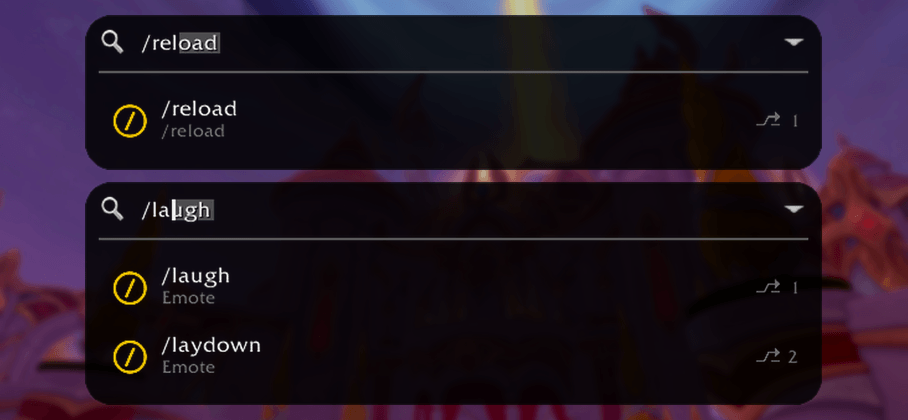
/efor/ef o: open EasyFind options./ef clearor/ef c: clear active highlights, guides, pins, and map indicators in case any stragglers appear (should not normally be necessary)./ef resetor/ef r: reset all settings after confirmation (/ef reset positionsfor positions only)./ef setup: run the tutorial again./ef whatsnew: show the What's New popup./ef bug: show the bug-report link./ef feature: show the feature-request link.
Search-bar commands are also available by typing / directly in the EasyFind search bar.
Keybinds
Two binds ship enabled by default, account-wide: Ctrl+Space (Search Bar) and Ctrl+M (Map Search Tab). If one of these keys is already bound to something else, EasyFind's bind takes precedence while it is set; your existing bind is not cleared and works again as soon as you rebind or remove EasyFind's.
Change or remove them in EasyFind options. Available binds:
- Search Bar
- Map Search Tab
- Clear All
Languages
Fully translated into English, German, French, Italian, Spanish (EU and Latin America), Korean, Portuguese, Russian, and Chinese (Simplified and Traditional). The addon follows your game client's language automatically; anything missing a translation falls back to English. Translation fixes are welcome through GitHub issues.
Feedback
- GitHub issues: https://github.com/wowaddonmaker/EasyFind/issues/new/choose
- CurseForge: https://www.curseforge.com/wow/addons/easyfind
Links
The EasyFind - Search Everything Team